Installation
Orchard is distributed as a notarized DMG from the Orchard website, not through the Mac App Store.
System requirements
Orchard requires macOS 13.0 or later. It runs on Apple Silicon and Intel Macs.
Orchard updates itself from the menu bar. See the changelog for what’s new in each release.
Why not the Mac App Store
Orchard needs Full Disk Access and broad automation permissions to read and control apps like Mail and Messages. Those requirements are incompatible with the App Store sandbox, so Orchard ships as a notarized DMG instead. See the FAQ for details.
Install Orchard
-
Download Orchard to get the latest DMG.
-
Open the downloaded
.dmgfile and drag Orchard into your Applications folder. -
Open Orchard from Applications (or Launchpad). macOS may show a Gatekeeper prompt for a downloaded app the first time. Click Open to continue.
-
Orchard launches as a menu bar app; it does not create a Dock icon or a normal app window. On this first launch, its Welcome window opens automatically so you can start signing in right away — there’s no panel to go looking for.
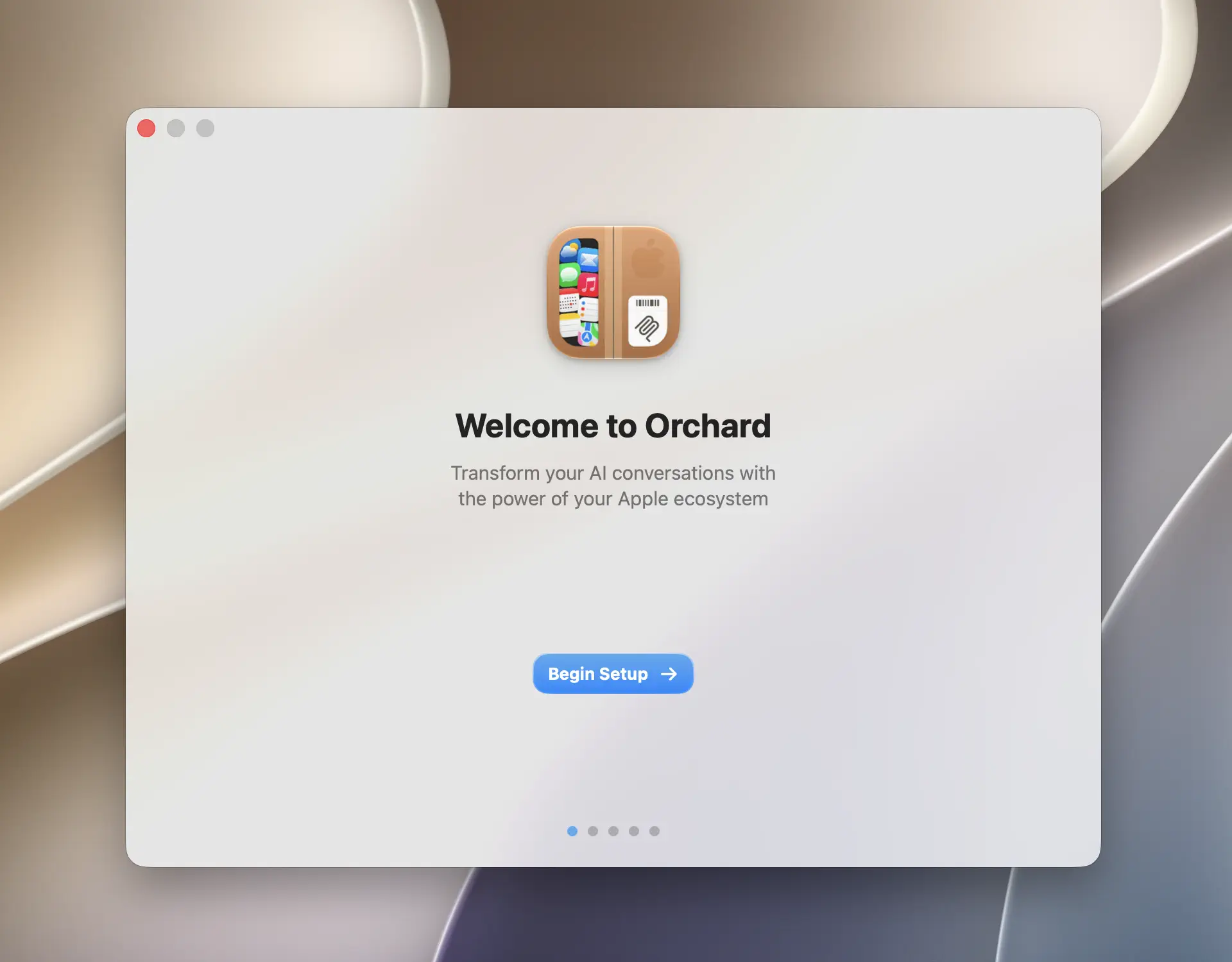
Find Orchard in your menu bar
Once running, Orchard lives entirely in the macOS menu bar. Look for its icon near the right side of the menu bar, alongside Wi-Fi, battery, and other system status items.
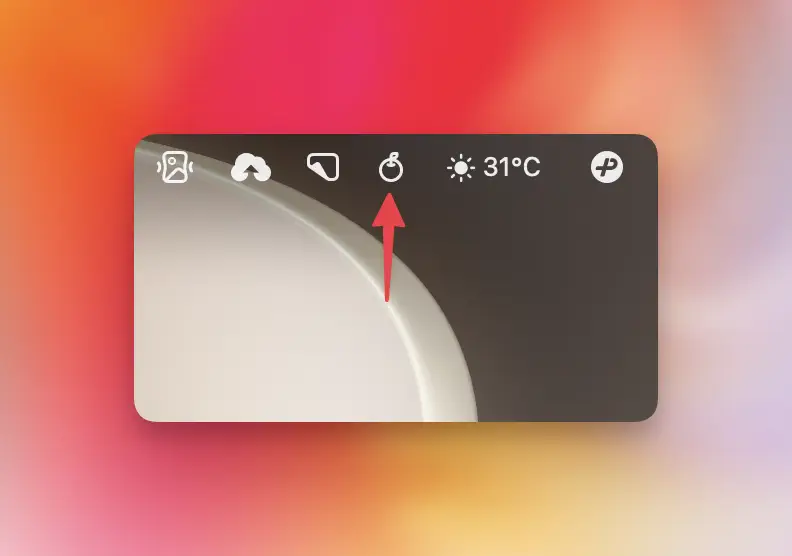
Click the icon to open the main panel. This is where you sign in, enable apps, check permissions, and install the Skill or MCP integration; there is no separate Settings window to look for.
Tip
If you ever close the first-run walkthrough and want to see it again, open the panel, go to More Options, and choose Show Welcome Screen.
Keeping Orchard up to date
Orchard checks for updates automatically in the background. You can also trigger a manual check anytime from the panel.
- Click the Orchard menu bar icon to open the panel.
- Open More Options.
- Click Check for Updates.
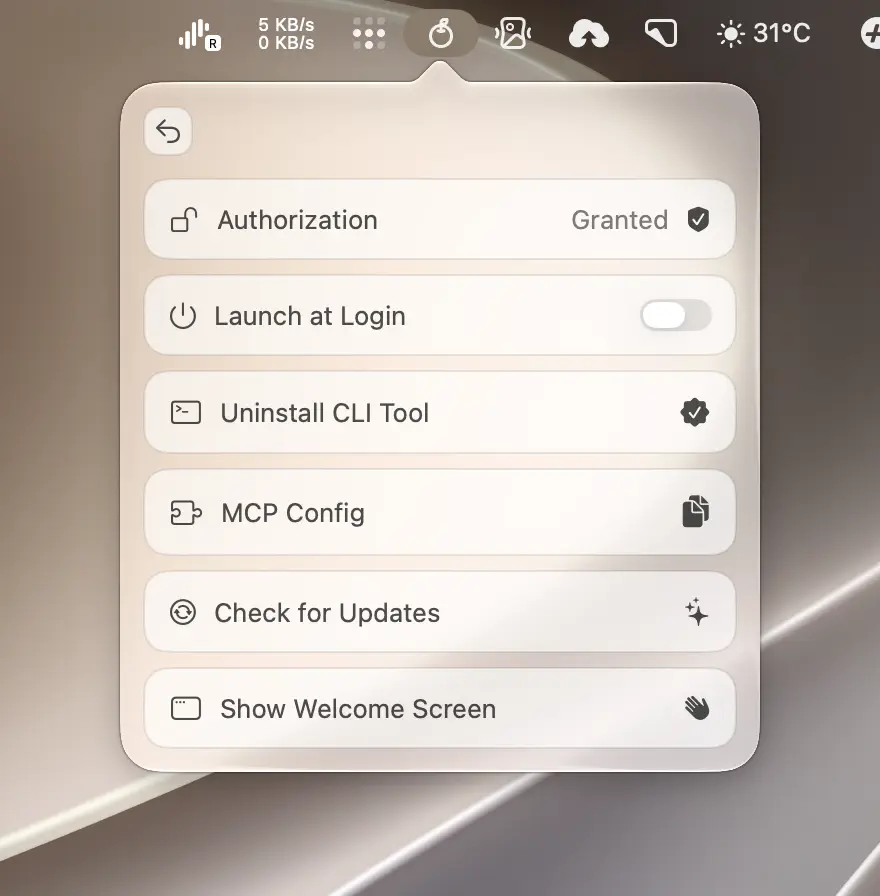
If you’ve installed the orchard CLI symlink, you don’t need to reinstall it after an update: updating Orchard automatically keeps the symlink pointing at the current version. See the CLI Reference for CLI installation details.
Update the Skill too
Some releases include a newer Orchard Skill even when the app’s tool count stays the same. After updating the app, reopen More Options → Show Welcome Screen. If the Skill row shows Update, install it and restart your AI client so it picks up the new instructions.
Next steps
Continue to Quick Start to sign in, enable your first apps, and send your first AI-assisted command.