Time & Timezone MCP Server & CLI for Mac (Apple Clock)
Orchard’s Clock integration is a time and timezone MCP server and command-line tool for Mac. Ask Claude, ChatGPT, Codex, or any MCP client what time it is anywhere in the world, convert between timezones, or figure out how far apart two moments are, with no separate app required. Clock requires no macOS permissions at all and is free on every plan.
Works with: Claude Code, Claude Desktop, ChatGPT, Codex, Cursor, Raycast AI, Gemini CLI, GitHub Copilot, and any MCP client — through the Orchard Agent Skill, the orchard CLI, or the Orchard MCP server.
Clock is off by default
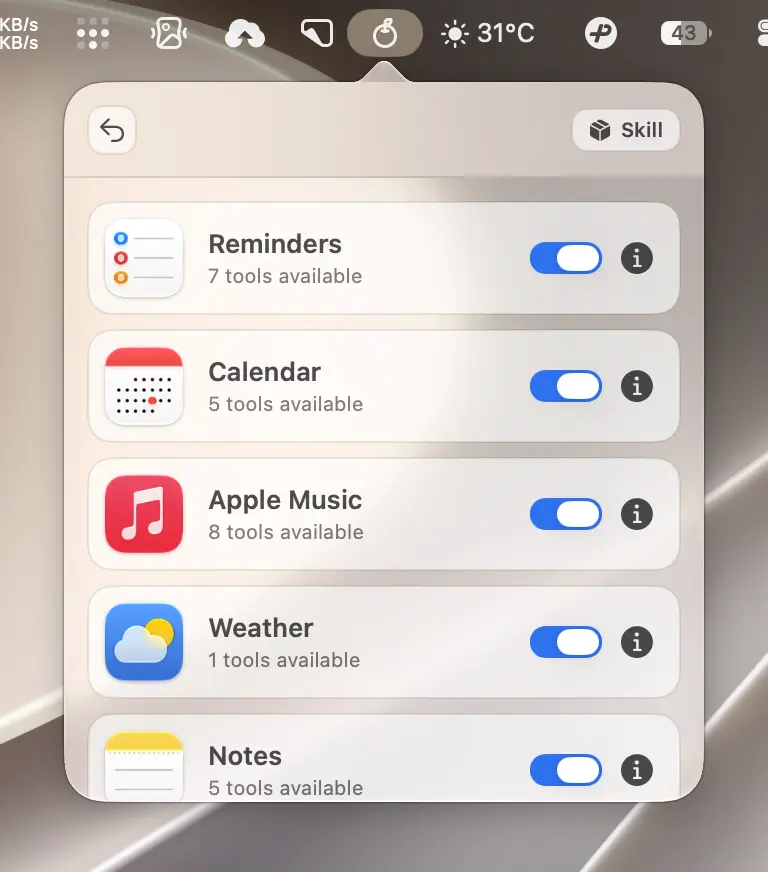
Clock is free, but it is not enabled by default — only Reminders and Calendar are turned on automatically after onboarding. Open the Orchard menu bar panel, go to the integrations list, and switch Clock on before your AI client can use it.
What you can do
- “What time is it in Tokyo right now?”
- “Convert 2pm Eastern time on July 14th to Central European Time.”
- “How many hours until my flight lands at 6am in Singapore, given it’s currently 11pm here?”
- “List timezones in Europe.”
- “What’s the time difference between these two timestamps?”
Available tools
| Tool | Description |
|---|---|
clock_time | Get the current time in a timezone, or convert a specific time from one timezone to another. |
clock_util | List available timezones (optionally filtered by region), or calculate the difference between two ISO 8601 times. |
clock_time behaves differently depending on whether to_timezone is provided: omit it to get the current time in timezone (defaults to your Mac’s system timezone); provide it along with time to convert a specific moment between timezones. clock_util uses an action parameter set to list_timezones or difference. clock_time also accepts an optional calendar_identifier (gregorian, buddhist, chinese, hebrew, islamic, japanese, and others) to format the current time in a non-Gregorian calendar.
Required permissions
None. Clock reads only the system clock and macOS’s built-in timezone data, so it doesn’t need Calendars, Reminders, Automation, or Full Disk Access, and no permission prompt appears at all.
CLI usage
The orchard clock command exposes both operations as subcommands.
orchard clock time --timezone "Asia/Tokyo"orchard clock time --timezone "America/New_York" --to-timezone "Europe/Paris" --time "2026-07-14T14:00:00"Add --calendar-identifier to format the current time in a non-Gregorian calendar, for example the traditional Chinese calendar:
orchard clock time --timezone "Asia/Shanghai" --calendar-identifier chinese--calendar-identifier is ignored whenever --to-timezone is set — timezone conversion always reports in the Gregorian calendar.
orchard clock util --action list_timezones --region Europeorchard clock util --action difference --time1 "2026-07-13T23:00:00Z" --time2 "2026-07-14T06:00:00Z"Both subcommands accept --json for machine-readable output:
orchard clock time --jsonRun orchard clock <subcommand> --help (or orchard help clock <subcommand>) for the full flag list — see the CLI Reference for more.
Tips & limitations
- Clock has no countdown timer or Pomodoro-style features: it only reports current time, converts between timezones, and computes differences.
- Because Clock needs no macOS permission, it works immediately over SSH or in headless sessions once you enable it in the integrations list.
- Time and timezone parameters always expect ISO 8601 strings; timezone identifiers follow the IANA format (
America/New_York,Asia/Shanghai), not abbreviations likeEST.
Get started
- Download Orchard for macOS (macOS 13 or later; Clock is free on every plan).
- Connect your AI client: Claude Code, Claude Desktop, Codex, Cursor, Raycast AI and other agents, or any MCP client.
- Or skip the chat entirely and use the
orchardCLI from your terminal.