macOS MCP Server for Apple Apps — 11 Apps, 52 Tools, Any MCP Client
Orchard is a macOS MCP server for Apple apps: 52 local tools across Reminders, Calendar, Mail, Notes, iMessage, Contacts, Maps, Apple Music, Weather, Shortcuts and Clock. The Orchard MCP server is the orchard mcp command that ships inside Orchard for macOS: a local stdio server that any client speaking the Model Context Protocol (MCP) — Claude, ChatGPT, Cursor, Codex, Raycast AI, Gemini CLI, Copilot and others — can launch to create reminders, check your calendar, and control your other Apple apps, with no cloud and no open ports. Use the Orchard MCP server for clients that don’t support Agent Skills, and for any MCP client in general, whether that’s Cursor, Claude Desktop, Codex, or another tool entirely. It runs locally as part of the Orchard CLI and never listens on a network port.
Note
For the full picture — every supported app, tool counts, and a client-by-client connection table — see the Apple MCP Server overview.
Orchard 0.6.2 configures Claude Desktop and Cursor for you from the Use Orchard with Skills screen. This MCP entry is also what lets Claude Cowork — whose own sandbox cannot reach your Mac’s CLI — use the Orchard Skill through Claude Desktop.
How it works
Your MCP client starts orchard mcp and talks to it directly on your Mac. There is no HTTP server and no network port involved at any point. Every tool call is passed along to Orchard.app, which is the part of the system that actually talks to your Apple apps.
flowchart LR
    A[Your MCP client] --> B[Orchard]
    B --> C[Your Apple apps]
Let Orchard configure it
- Open Orchard and choose More Options → Show Welcome Screen.
- Continue to Use Orchard with Skills.
- Install or update the Local Agents Skill to let Orchard configure installed copies of Claude Desktop and Cursor automatically, or click Verify on MCP for Claude Desktop, Cursor & more to run the check directly.
- Confirm the row reports the client as configured, then fully restart that client so it reloads the MCP server list.
Orchard preserves other MCP servers in the same file. If it replaces an older Orchard entry, it creates a timestamped backup next to the original config first.
Add the config manually
Use manual setup for other MCP clients, or if the automatic check reports a write failure. Orchard’s Copy Config button on the setup screen — and the MCP Config button under More Options — copies the correct JSON to your clipboard. It works even if you have not installed the /usr/local/bin/orchard symlink: Orchard falls back to the CLI binary embedded in the app bundle.
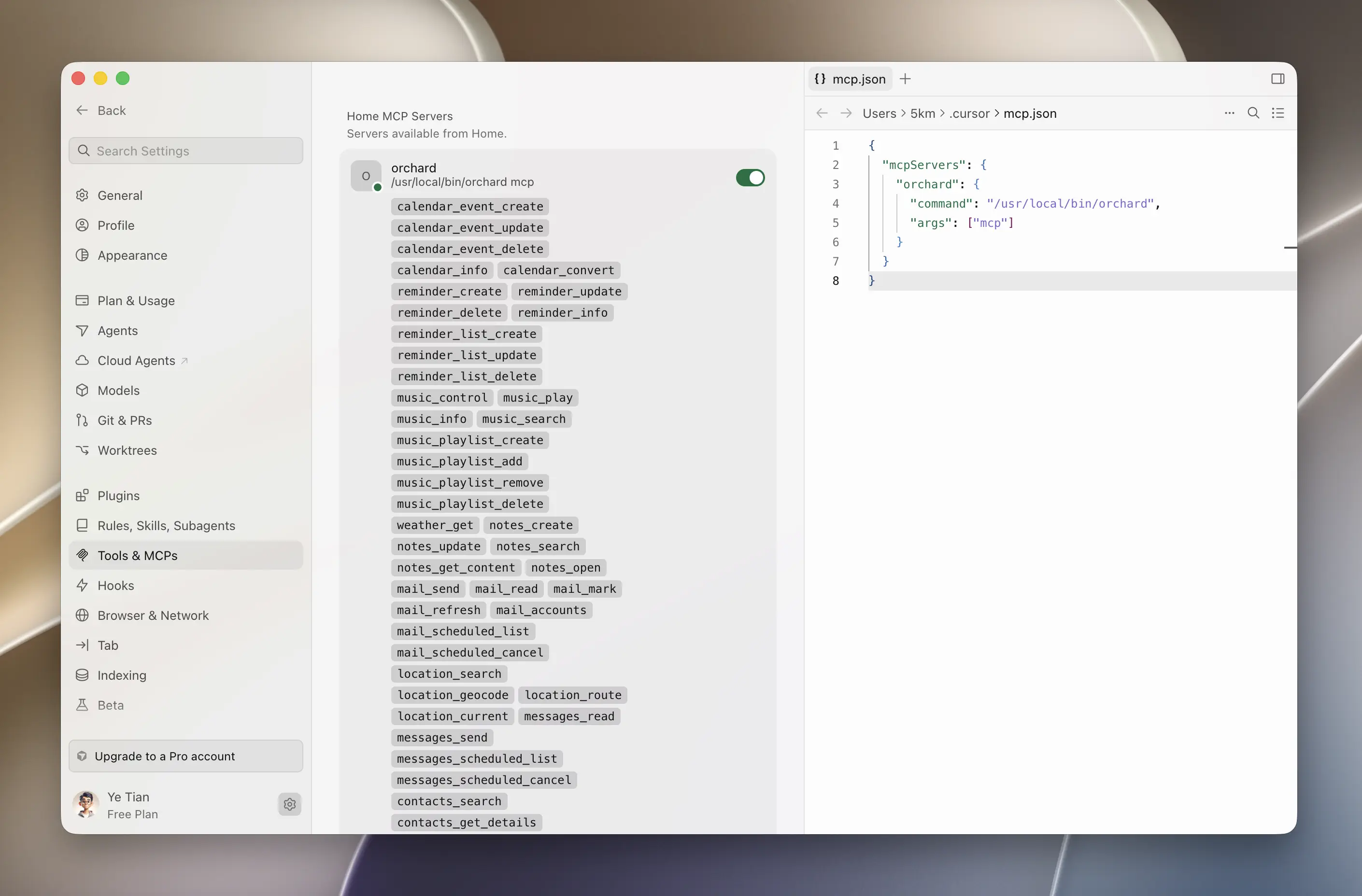
The example below uses Cursor to show where this JSON goes; any MCP client takes the same JSON in its own config file.
{ "mcpServers": { "orchard": { "command": "/usr/local/bin/orchard", "args": ["mcp"] } }}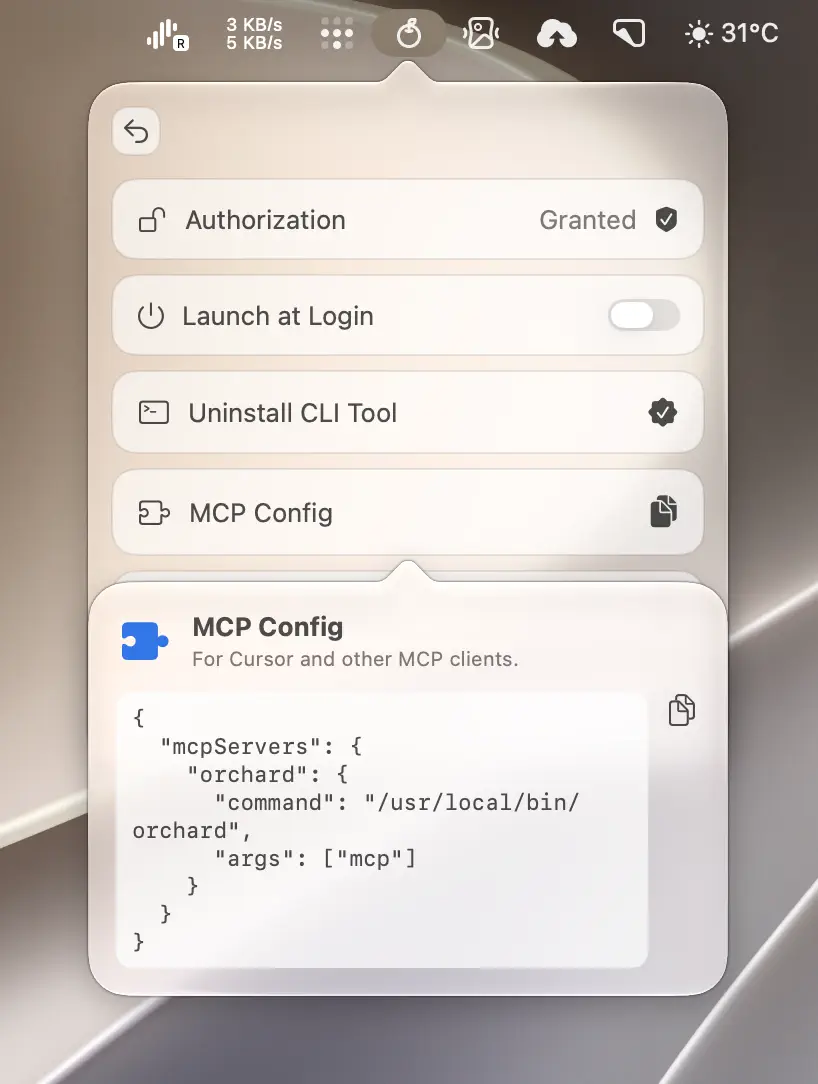
- Open Orchard’s app integrations list and click MCP Config to copy the snippet.
- Paste it into your client’s MCP configuration file: for Cursor, that is
~/.cursor/mcp.json. - Restart Cursor (or reload its MCP configuration) so it picks up the new server.
- Open Cursor’s MCP panel and confirm a server named orchard appears with its tool list populated.
Prefer a Skill if your client supports one
If your AI client supports Agent Skills (Claude Code, Claude Desktop, Codex), install the Orchard Skill because it includes richer usage guidance. Most clients then use the CLI directly; sandboxed environments such as Claude Cowork use this MCP connection as the Skill’s fallback channel. See Claude Desktop and Cowork.
Auto-launch behavior
If Orchard.app is not running when your MCP client calls a tool, Orchard starts automatically and waits up to about 10 seconds before retrying the original call. If it cannot start, you may see one of these messages:
Orchard.app is not installed or could not be started automatically. Please install or start Orchard.app manually and try again.
Orchard.app was launched but did not become ready within 10 seconds. Please try again in a moment.
If several tool calls arrive at once while Orchard is starting, they all wait on that same launch instead of triggering duplicate copies of the app.
Tools, prompts, and resources
orchard mcp exposes 52 tools (the same set the Orchard Skill and CLI use), 11 prompts, and 18 resources under an orchard:// URI scheme.
- Prompts are parameterized, multi-step workflow templates (for example
daily-briefing,compose-email, orschedule-meeting) that tell the calling agent which tools to invoke in what order. - Resources are static, per-topic reference documents that explain which tool to use for a given need, whether it is Free or Pro, and example arguments. The one exception is
orchard://clock/now, which returns the current time on every read instead of a static document.
Prompts and resources are available immediately and do not require Orchard.app to be running; only actual tool calls need the app open.
In Orchard 0.6.2, an MCP result that contains both a human-readable explanation and structured JSON returns them as separate content parts. Compatible clients can show the explanation while parsing the data cleanly instead of treating one mixed string as both.
Free accounts and Pro tools
Free accounts see the full list of 52 tools in an MCP client; Orchard does not filter the tool list by plan. Calling a Pro-only tool (Notes, Mail, Messages, Contacts, Maps, Apple Music, Weather, Shortcuts) returns a response with isError: true and an upgrade message instead of executing.
This is expected, not a bug
Most MCP client UIs render an isError: true response as a failed tool call. Seeing a Pro tool “fail” for a Free account is the intended gating behavior, not a connection problem. See Free vs Pro for the full feature breakdown.
Remote access over SSH
orchard mcp does not listen on any network port, so there is no way to connect to it directly from another machine. To call a Mac’s Orchard from elsewhere, have the MCP client launch orchard mcp on the remote Mac over SSH instead of locally:
{ "mcpServers": { "orchard-remote": { "command": "ssh", "args": ["user@mac-hostname", "/usr/local/bin/orchard", "mcp"] } }}Replace user@mac-hostname with the SSH login for the target Mac (a passwordless SSH key is recommended). SSH carries the connection between your local MCP client and the remote Orchard; Orchard itself still never opens a network port.
The Skill channel can reach a remote Mac the same way: tell your agent (or note it in your own instructions) to run the orchard command over SSH against another machine, and its tools execute there instead of locally.
Tips & limitations
- Restart your MCP client after editing its config file: most clients only read MCP server definitions at startup.
- If Claude Desktop works but Cowork cannot find Orchard, update both Orchard and the Skill, click Verify on the MCP row, then fully restart Claude Desktop. See Claude Desktop and Cowork for the complete fix.
- Some tool calls (especially interactive ones like
shortcuts_run) can take a while before they fail outright. That is expected behavior for slow or interactive operations, not a sign something is broken. - For troubleshooting connection failures, see Troubleshooting.