Connect Claude Code to Apple Reminders, Calendar, Mail & Notes — Skill, CLI & MCP
Connect Claude Code to Apple Reminders, Calendar, Mail, Notes, iMessage, Contacts and the rest of your Apple apps, so it can create reminders, check your calendar, search your notes and more from plain-language requests in your terminal session. Orchard gives Claude Code three ways in: an Agent Skill (recommended), the orchard CLI, and a local MCP server. Orchard ships a Skill package you install in one click from the menu bar panel, with no manual file copying required.
Tip
Wondering what Claude can actually do once it’s connected? Can Claude connect to Apple Calendar, Reminders, Mail and Notes? has real example prompts for every app.
Install from Orchard
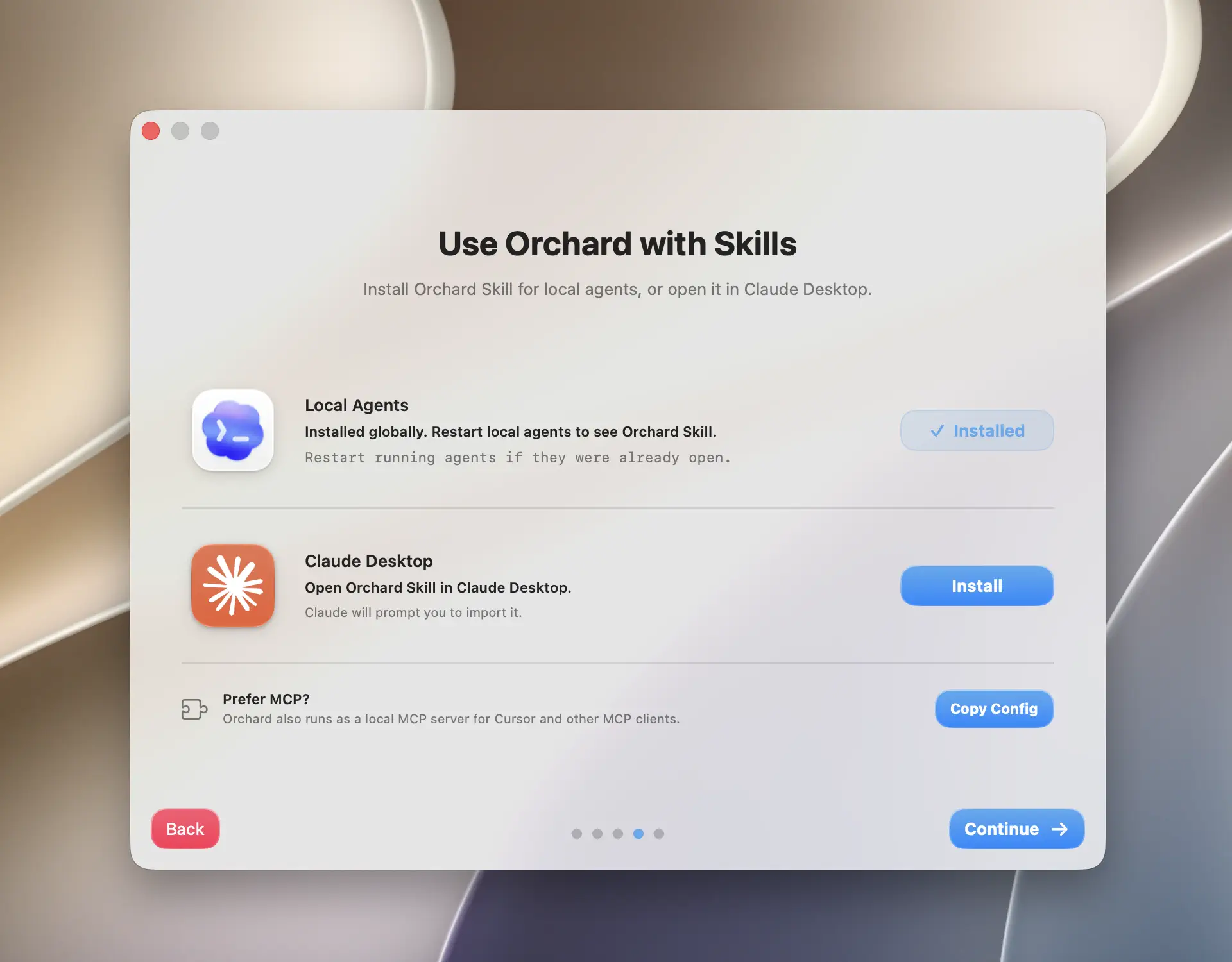
The Orchard Skill installs together for all local agents (Claude Code, Codex, and any Agent Skills–compatible client) with a single button, because they share the same package.
- Open Orchard from the menu bar and sign in if you have not already.
- During onboarding, continue to the Use Orchard with Skills step. Outside onboarding, open the app integrations list and find the Local Agents row.
- Click Install. Orchard writes the Skill package to three locations at once:
~/.agents/skills/orchard(the primary Agent Skills path),~/.claude/skills/orchard(Claude Code’s personal Skill location), and~/.codex/skills/orchard(a compatibility path for existing Codex setups). - Quit and reopen any running Claude Code session so it picks up the new Skill.
Caution
Claude Code only loads Skills at startup. If Claude Code was already running when you installed or updated the Skill, restart it. Orchard cannot force a running session to rescan ~/.claude/skills/.
Manual install
If you prefer not to open Orchard, or you are setting up Claude Code on a machine without the Orchard app, install the Skill directly from its GitHub repository:
npx skills add okooo5km/Skills4U --skill orchard -gThe -g flag installs it globally so every Claude Code session can see it. This is the same package Orchard’s built-in installer uses, just fetched over the network instead of copied from the app bundle.
Verify it worked
- Start a new Claude Code session in any directory.
- Ask something that requires a local Apple app, for example: “What’s on my calendar today?” or “Remind me to call the dentist tomorrow at 9am.”
- Claude Code should invoke the Orchard Skill and come back with a real answer. Orchard.app must be running for the call to succeed.
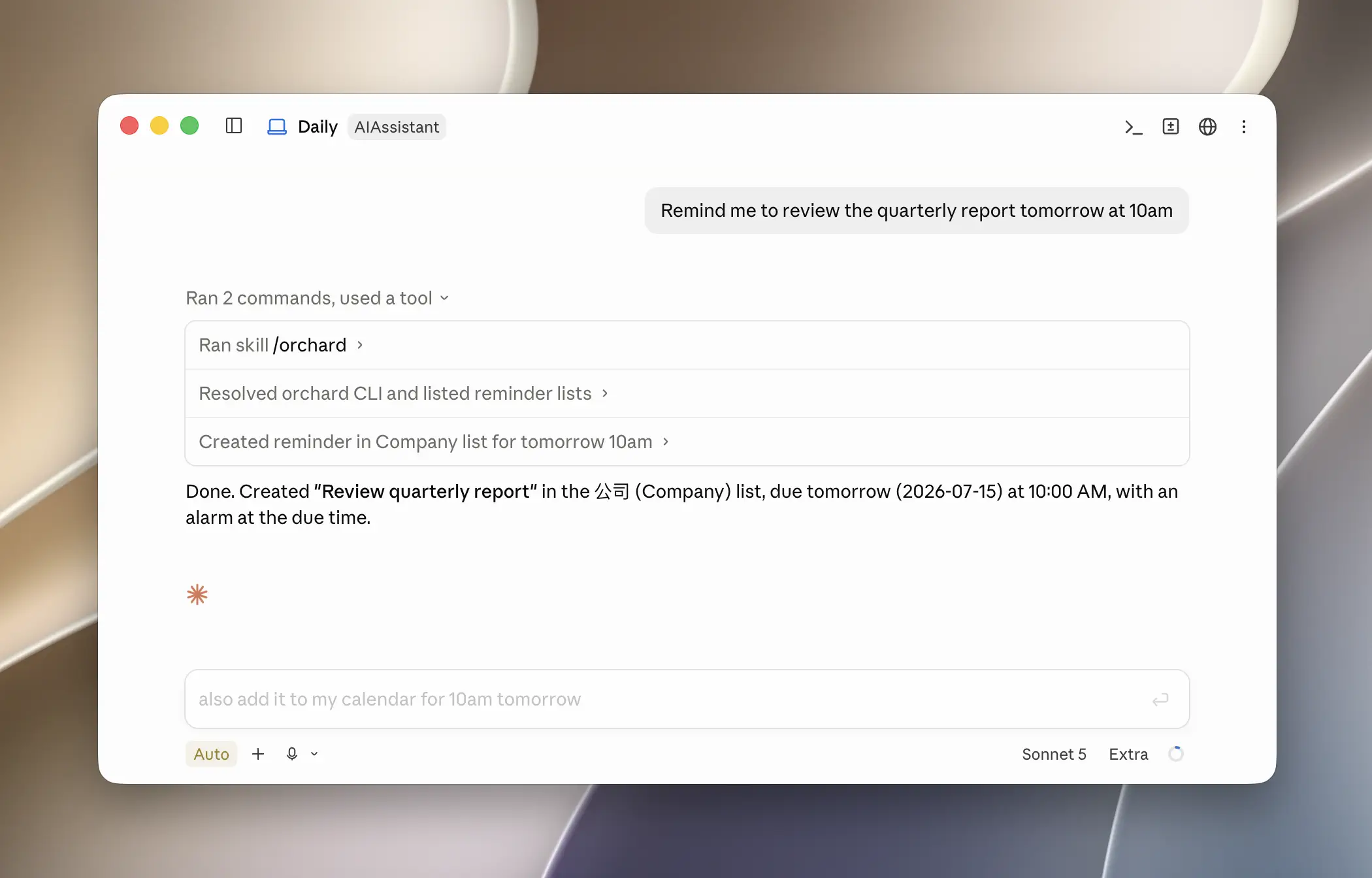
If Claude Code reports the command was not found or the Skill didn’t trigger, confirm ~/.claude/skills/orchard/SKILL.md exists and that you restarted the session after installing.
Tips
- The Skill locates Orchard’s CLI automatically, so you don’t need to separately install the
orchardcommand to/usr/local/bin. Installing the CLI (see CLI Reference) is optional, useful only if you also want to runorchardcommands by hand. - Orchard.app must be running whenever Claude Code calls a tool. If it is not, the call fails with a connection error: unlike
orchard mcp, the Skill path does not auto-launch the app. - Free accounts can install and use the Skill; calling a Pro-only tool (Notes, Mail, Messages, Contacts, Maps, Apple Music, Weather, Shortcuts) returns an upgrade message instead of running. See Free vs Pro.
- When Orchard ships a newer Skill version, the Local Agents row shows an Update button. Click it and restart Claude Code again.
Claude Code can also be pointed at orchard mcp (see Connect via MCP), though the Skill remains the recommended path since it ships richer usage guidance.