Apple Reminders, Calendar, Mail & Notes from the Command Line — orchard CLI
The orchard CLI is a command-line interface for Apple Reminders, Calendar, Mail, Notes, iMessage, Contacts, Maps, Apple Music, Weather and Shortcuts on macOS: scriptable, with structured JSON output you can pipe into other tools or hand to any AI agent that can run shell commands (Claude Code, Codex, Gemini CLI, Copilot CLI and friends). Orchard 0.6.2 also adds commands to inspect your setup, check feature and permission status, and toggle integrations without opening the menu bar panel. Installing the global CLI is optional; Skill and MCP integrations can use the binary bundled inside Orchard.app.
Install the CLI
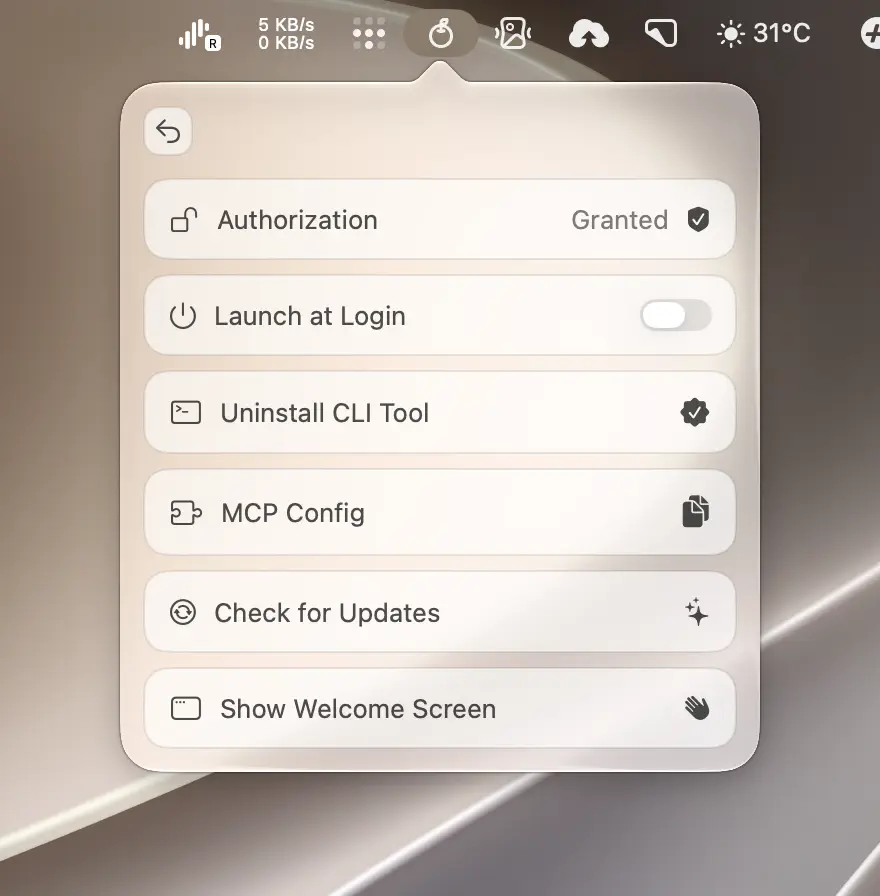
- Open the Orchard menu bar panel and go to More Options.
- Click Install CLI Tool. macOS prompts for your administrator password, then creates
/usr/local/bin/orchardas a symlink to the CLI binary bundled inside Orchard.app. - Open a new terminal window and run
orchard --versionto confirm it resolves.
To install manually, symlink it yourself; this requires sudo because /usr/local/bin is owned by root:
sudo ln -sf "/Applications/Orchard.app/Contents/MacOS/orchard-cli" /usr/local/bin/orchardUpdates are automatic
Orchard updates itself in place, and the symlink always points at the same path inside the app bundle, so you never need to reinstall the CLI after an update.
To remove it, click Uninstall CLI Tool in More Options (also requires an administrator password), or run the manual equivalent:
sudo rm -f /usr/local/bin/orchardCommands at a glance
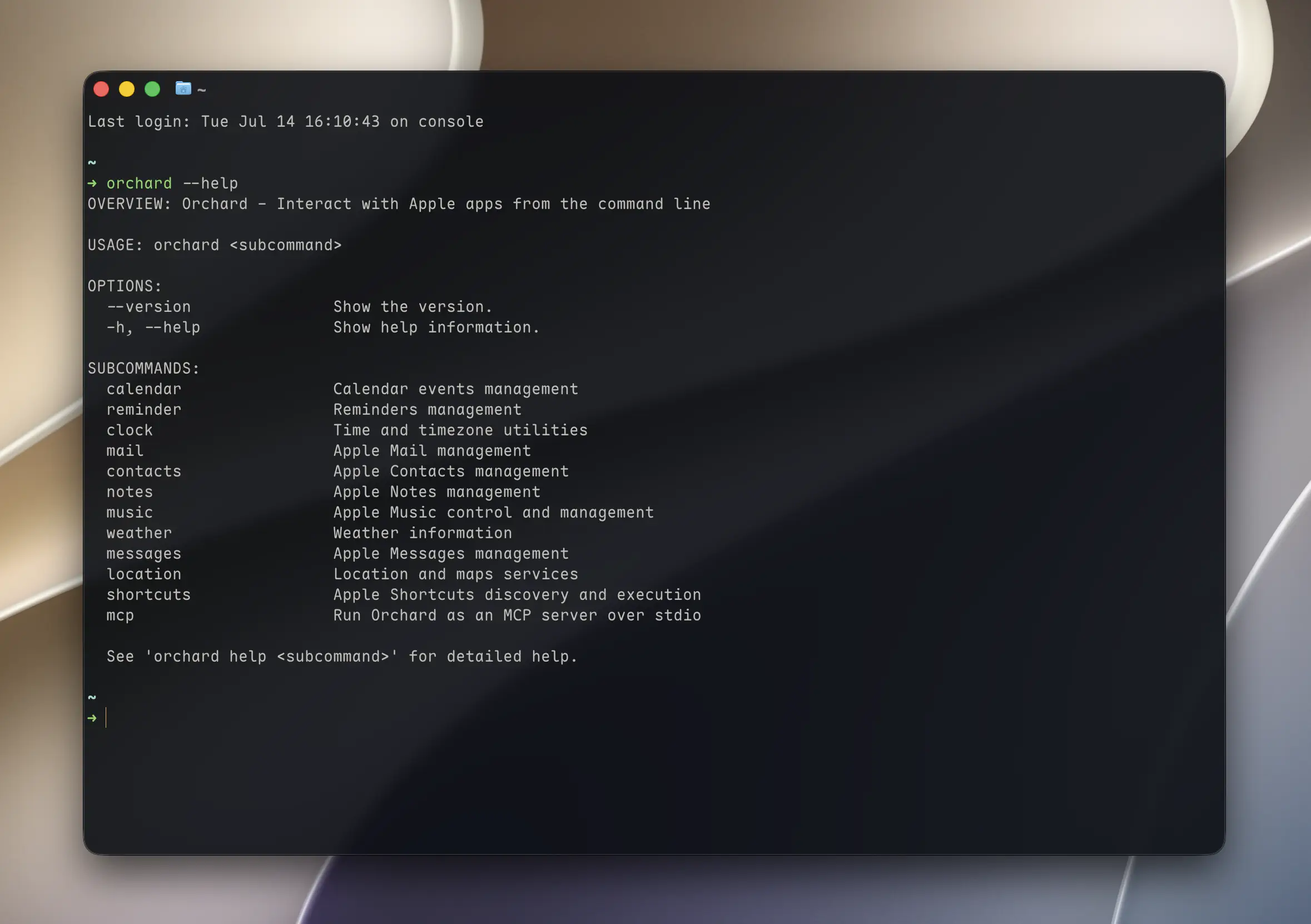
orchard has 15 top-level commands: 11 app domains, the MCP server, and three setup/diagnostic commands.
| Command | Details |
|---|---|
orchard calendar | Calendar |
orchard reminder | Reminders |
orchard clock | Clock |
orchard mail | |
orchard contacts | Contacts |
orchard notes | Notes |
orchard music | Apple Music |
orchard weather | Weather |
orchard messages | Messages |
orchard location | Maps |
orchard shortcuts | Shortcuts |
orchard mcp | Connect via MCP |
orchard status | Show whether Orchard is running, plus sign-in, plan, feature, and permission status. |
orchard features | List feature switches, or enable/disable one integration. |
orchard doctor | Run read-only checks for the app connection, CLI symlink, Skill installs, MCP configs, and version consistency. |
Maps is orchard location, not orchard maps
Every other command name matches its app page, but the Maps integration is exposed as orchard location, the command that starts a route, geocode, or nearby-places lookup.
Status, feature, and doctor commands
Use status for a quick snapshot without changing or launching anything:
orchard statusorchard status --jsonList every integration and its current switch, then enable or disable one by name:
orchard features listorchard features enable clockorchard features disable mailValid feature names are reminders, calendar, music, weather, notes, mail, maps, messages, contacts, clock, and shortcuts. Enabling a Pro integration does not bypass its subscription requirement.
For connection or setup problems, run:
orchard doctordoctor is read-only. It checks whether Orchard is reachable, whether /usr/local/bin/orchard points to the app, which local Skills are installed, whether Claude Desktop and Cursor contain an Orchard MCP entry, and whether the running app and CLI versions match. Warnings such as an uninstalled optional Skill do not fail the command; one or more failed checks exit with code 1.
Status and doctor do not launch Orchard
These two commands report the setup exactly as it is. If Orchard is closed, status reports running: false and exits successfully, while doctor reports a warning. Commands that actually use an Apple app attempt to launch Orchard automatically.
Automatic app launch
In Orchard 0.6.2 and later, app commands and orchard mcp try to launch Orchard.app when it is not already running, wait up to about 10 seconds, and retry once. For scripts that need an immediate failure instead, set ORCHARD_NO_AUTOLAUNCH=1 for that command.
ORCHARD_NO_AUTOLAUNCH=1 orchard calendar info --type calendarsCommon options
Most commands that return tool results accept:
--json: emit structured JSON instead of plain text (see below).--help/-h: show usage for that specific command.orchard --version: print the installed CLI version.
orchard mcp is a long-running MCP server rather than a one-shot result, and orchard doctor prints a human-readable checklist, so neither uses the normal --json envelope.
Negative coordinates need the equals form
For any numeric flag that can take a negative value (latitude/longitude and similar coordinates — --lat, --lon, or the --lat1/--lng1/--lat2/--lng2 pair used by orchard location route --straight-line), pass it as --flag=value rather than --flag value. A space-separated negative number, like --lon -122.4194, is parsed as a new flag and fails with a usage error (exit code 64); quoting the value doesn’t help. Use --lon=-122.4194 instead.
JSON output structure
For Apple-app commands, --json prints a single JSON object with up to four keys:
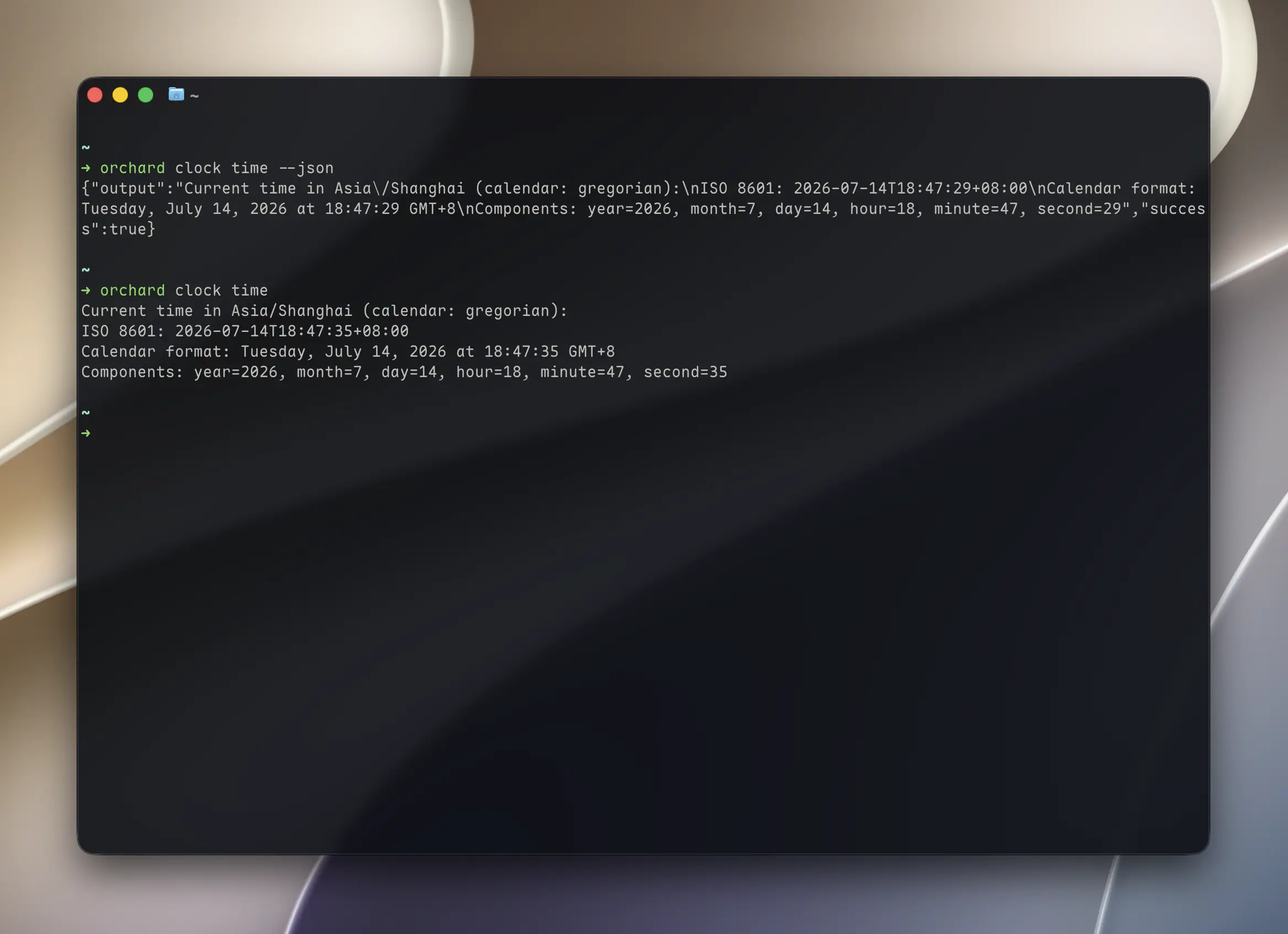
orchard clock time --json{"output":"Current time in Asia/Shanghai...","success":true}success:true/false, mirrors the exit code.output: the tool’s result. If the underlying text is (or ends with) a JSON object or array, it’s parsed into real JSON here; otherwise it’s the raw string.message(optional): a human-readable prefix that appeared before the JSON payload, when the tool returns both.rawOutput(optional): the tool’s unparsed original text, present wheneveroutputwas parsed out of it.
A tool that returns a human-readable prefix plus structured data populates all four fields:
{"message":"Found 1 event calendars:","output":{"calendars":[{"id":"abc","title":"Work"}],"count":1},"rawOutput":"Found 1 event calendars:\n{\"calendars\":[{\"id\":\"abc\",\"title\":\"Work\"}],\"count\":1}","success":true}For scripting, pipe structured commands through jq .output and use message for a status line where you want one.
Exit codes
| Code | Meaning |
|---|---|
0 | Success |
1 | The tool ran but returned an error (permission denied, Pro gate, not found, etc.) |
64 | Usage error: missing or invalid arguments |
Getting help
--help works attached directly to the command, or via the orchard help <path> form:
orchard mail read --helporchard help mail readBoth drill into the exact subcommand and print the same usage text, no matter how deep it’s nested.
Permissions from the CLI
The CLI itself never holds any macOS permission; Orchard.app does, and every command routes through it. The first time a command touches a new capability (Reminders, Calendar, Contacts, Location, and so on), macOS shows its standard permission prompt in the GUI app, not the terminal. Over SSH or another non-interactive session, grant permissions in advance through System Settings > Privacy & Security, since there’s no window to click “Allow” in. See the Permissions Guide for the full list of what each integration needs.
orchard mcp runs Orchard as a local MCP server for as long as the parent process keeps it open; see Connect via MCP for how to configure it.