Orchard for macOS Quick Start — Set Up in 5 Minutes
Sign in, turn on the free Reminders integration, and ask your AI assistant to create a real reminder. If you haven’t installed Orchard yet, start with Installation.
Run the first-run setup
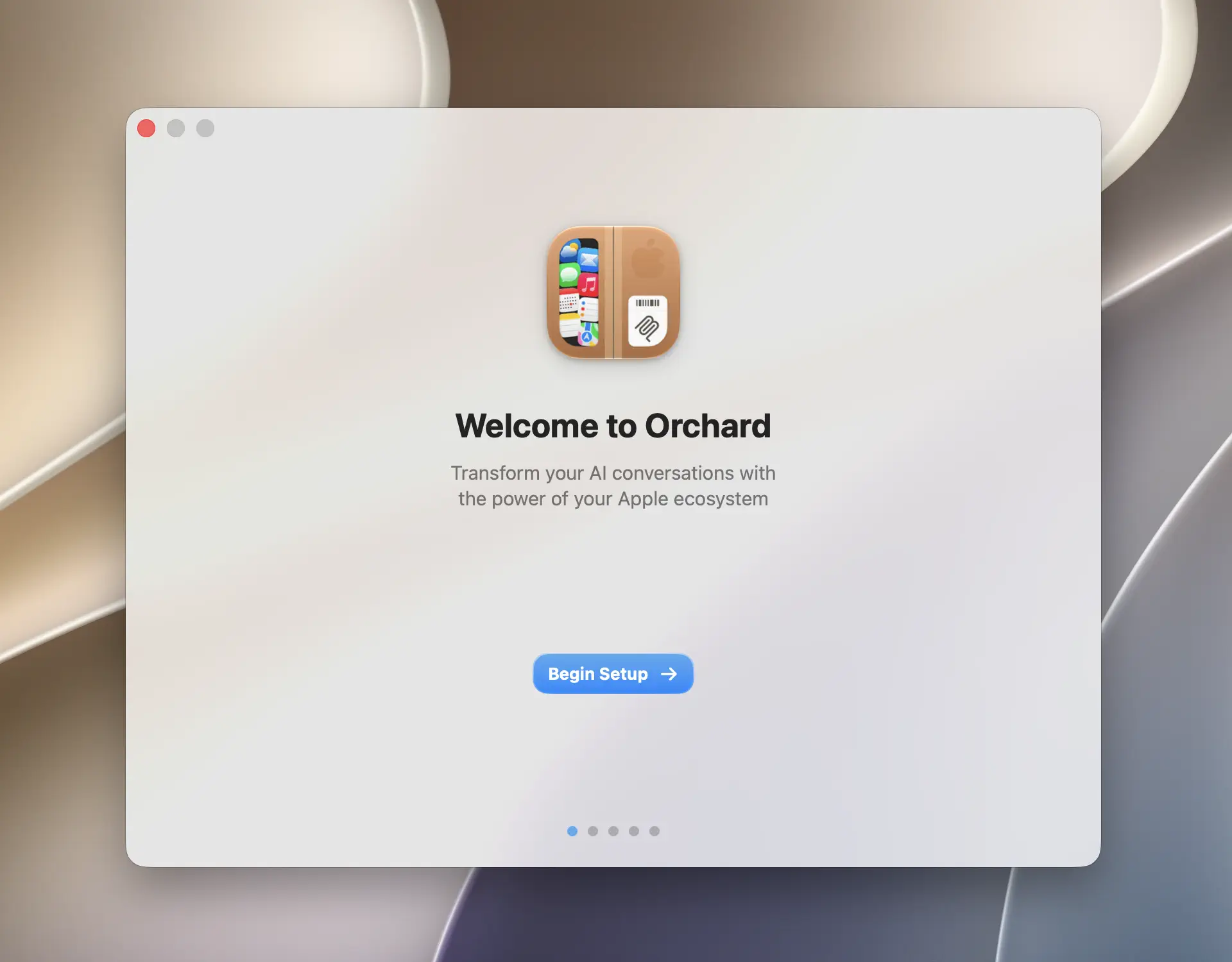
The first time you open Orchard, its Welcome window opens automatically and walks you through five steps: sign in, choose features, grant permissions, connect an AI client, and finish.
-
Welcome. In the window that opened automatically, click Sign In. This opens your default browser to the Orchard login page to sign in with Google, GitHub, or email, then redirects back to the app automatically.
-
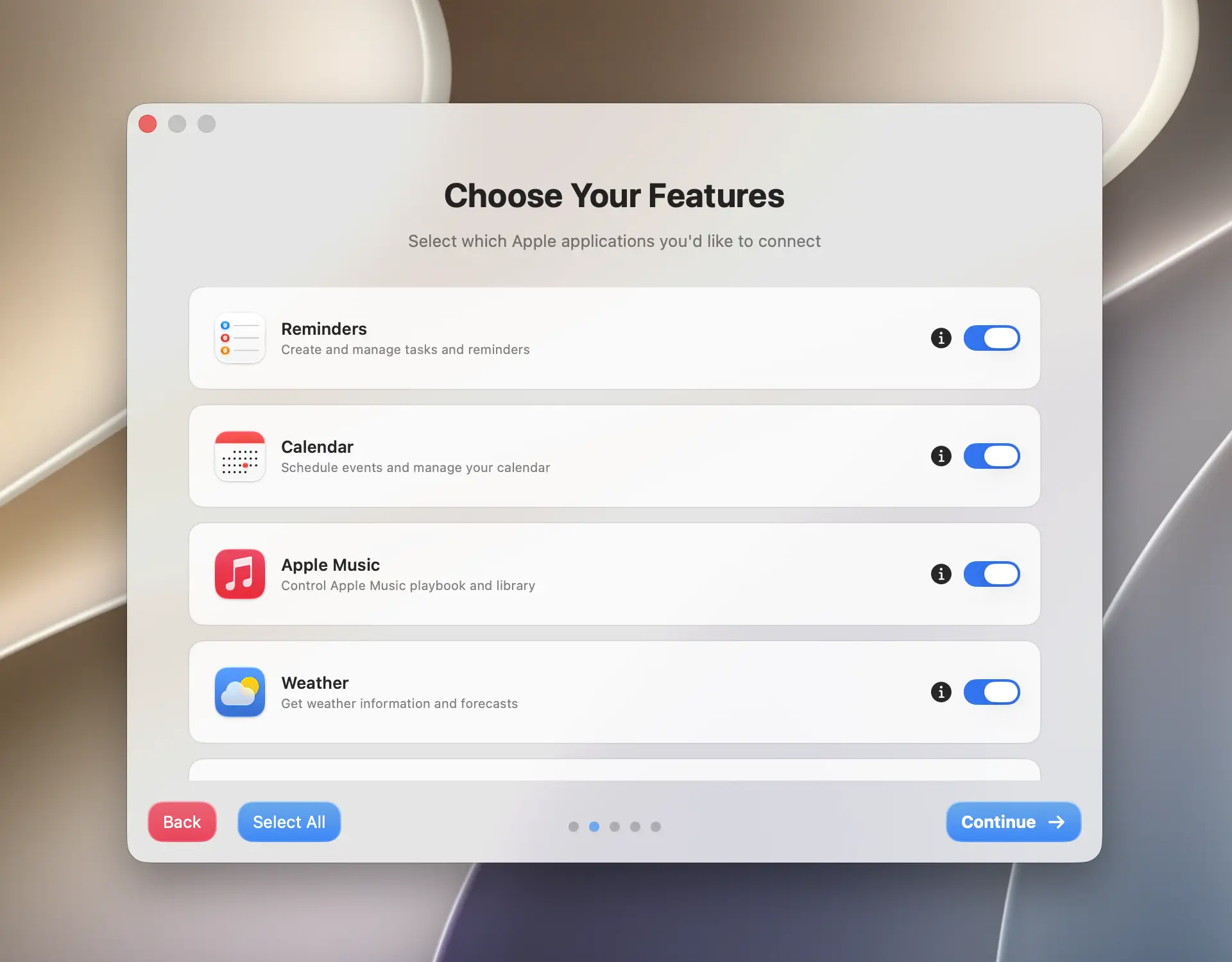
Choose your features. Pick which apps you want Orchard to use. Reminders and Calendar are enabled by default; Clock is free but starts off, so turn it on here if you want it. Pro apps are shown too, but their tools stay locked until you upgrade.
-
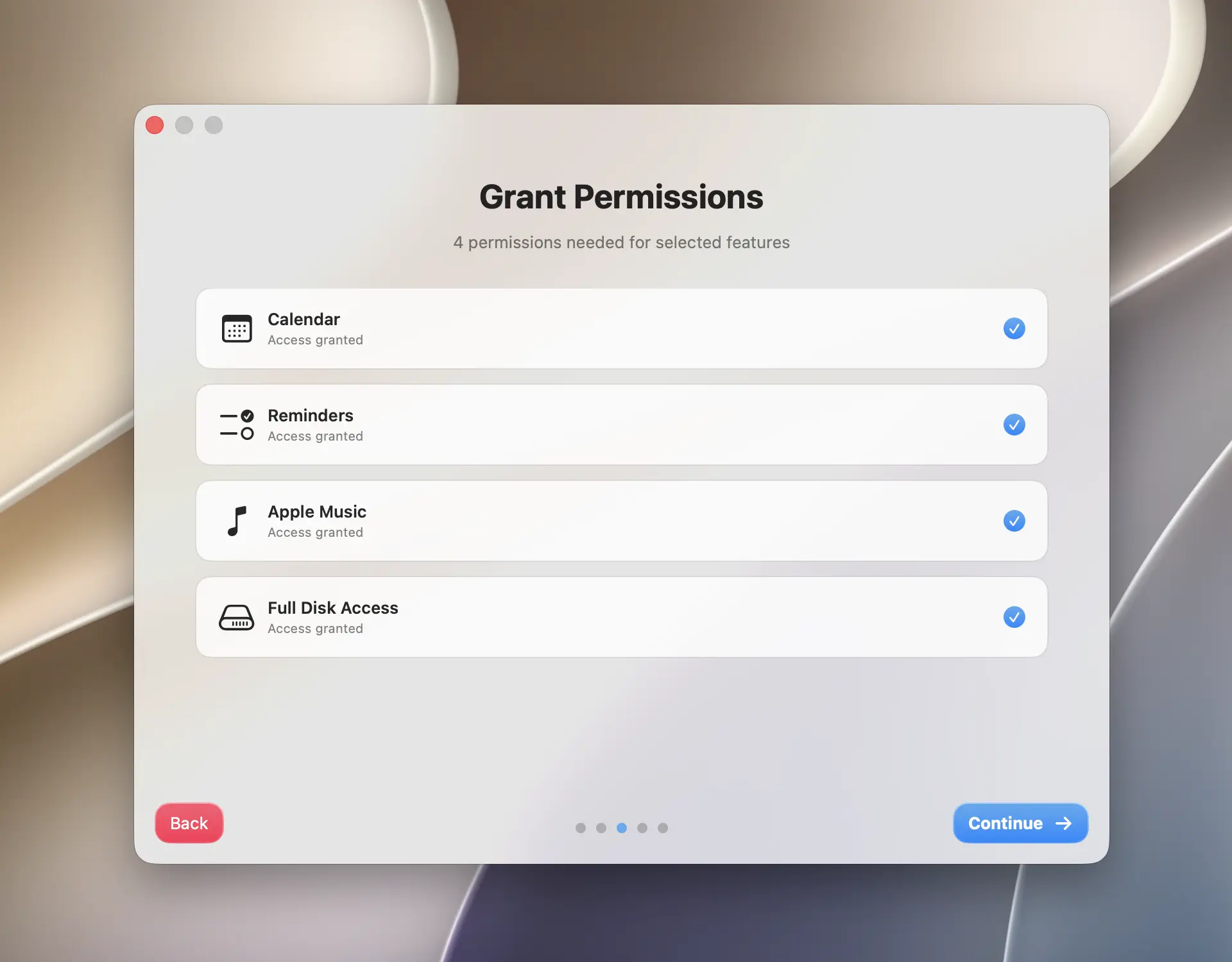
Grant permissions. Orchard requests macOS permission for each app you enabled: for Reminders and Calendar, a standard system dialog. Approve each prompt as it appears.
-
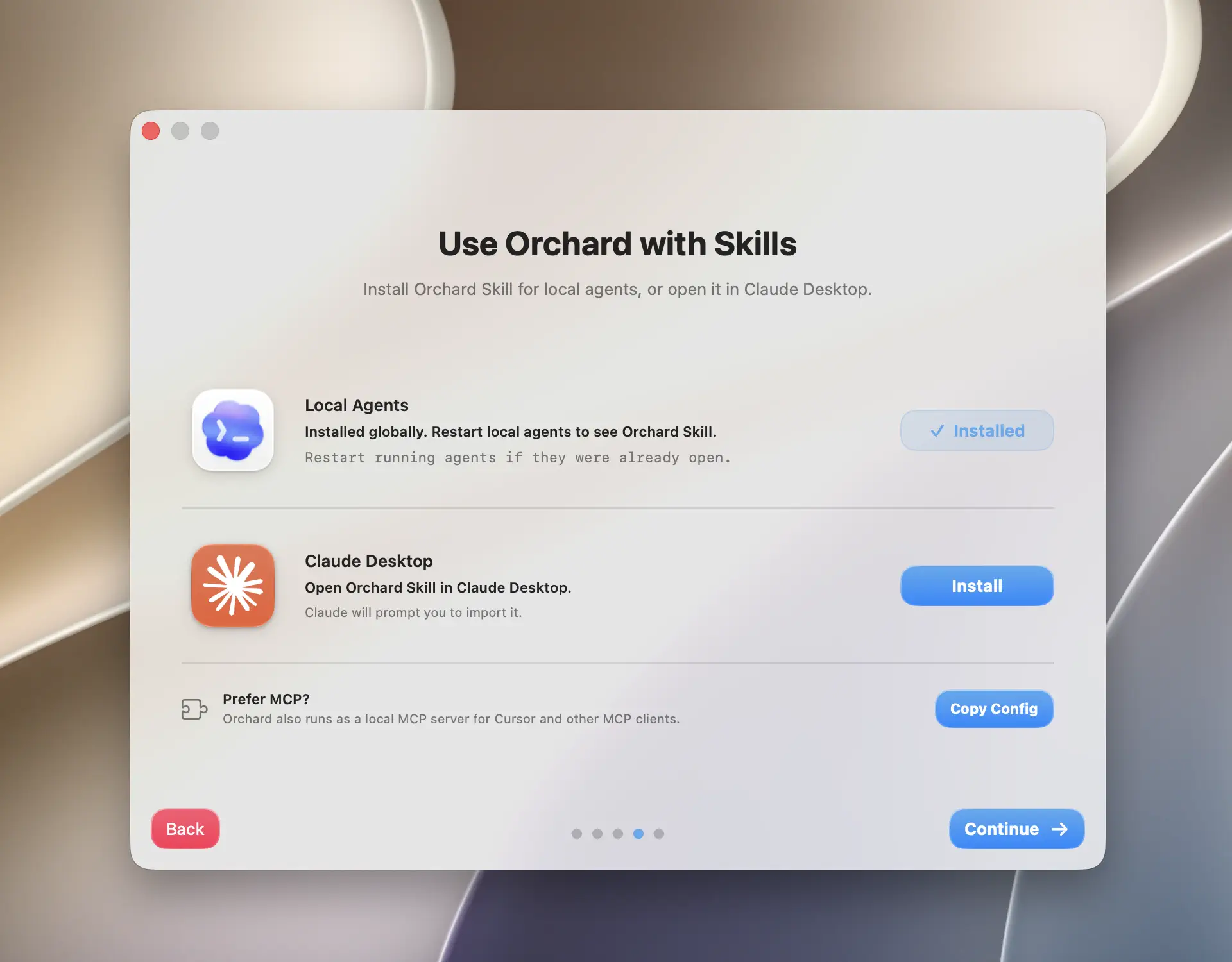
Connect an AI client. Install the Orchard Skill for local agents (Claude Code, Codex, and compatible clients), or open it in Claude Desktop. Orchard 0.6.2 also configures MCP for Claude Desktop and Cursor from this screen, which lets sandboxed Claude Cowork sessions reach Orchard. Use Verify on the MCP row if you want to check or repair that configuration; see Connect via MCP for manual setup.
-
Finish. Orchard shows a short pointer to where its menu bar icon lives, then closes the walkthrough.
Tip
You can reopen this walkthrough anytime from More Options → Show Welcome Screen in the Orchard panel.
Send your first command
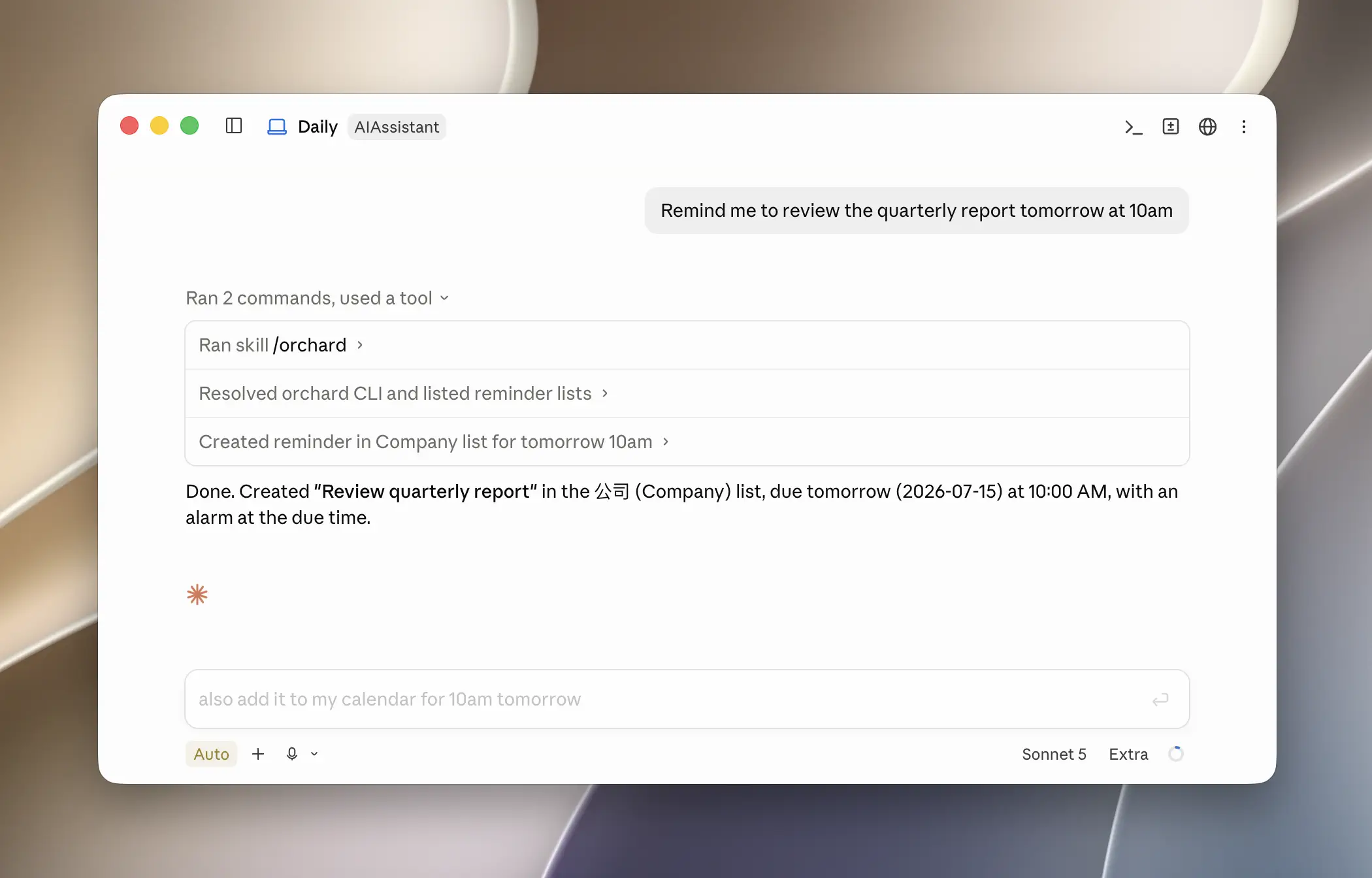
With Reminders enabled and permission granted, you’re ready to try a real command. Open your connected AI client (this example uses Claude Code) and ask it something in plain language:
Remind me to review the quarterly report tomorrow at 10amClaude Code recognizes the request, calls Orchard’s reminder_create tool over the Skill, and a reminder titled “Review the quarterly report,” due tomorrow at 10am, appears in the real Reminders app on your Mac, with no manual data entry required.
Try a few more once the first one works:
What's on my calendar tomorrow?List my open reminders due this week.Move the quarterly report reminder to Friday at 2pm.Note
Reminders, Calendar, and Clock are free with no usage limits. Everything else — Mail, Messages, Notes, Contacts, Maps, Apple Music, Weather, and Shortcuts — requires Orchard Pro. See Free vs Pro.
If you’re on Orchard Pro, the same pattern works on the chore most people repeat every single day: clearing the inbox. Ask your AI assistant to screen your unread mail, judge importance using criteria you set (sender, keywords, deadlines — whatever matters to you), and summarize only what deserves your attention:
Screen my unread mail from today. Flag anything from my manager or mentioning a deadline, and summarize the rest in one line each.Once you’re happy with the phrasing, save it as a reusable prompt in your AI client. From then on, inbox triage is a one-line daily routine instead of a request you re-type every morning.
Next steps
- Using a different client? See Connect Claude Code, Claude Desktop and Cowork, Codex & Other Agents, or Connect via MCP.
- Want to explore what else you can automate? Browse the App Integrations pages.
- Ran into a permission error or a locked tool? Check Permissions Guide or Troubleshooting.