Apple Notes MCP Server & CLI for Mac
Apple Notes has no public API, which is why most AI assistants can’t touch it. Orchard is an Apple Notes MCP server and command-line tool for Mac that gives Claude, ChatGPT, Cursor, Codex, Raycast AI, or any MCP client local read/write access to your notes, including fast local search and image handling, so capturing and finding notes doesn’t mean switching to the Notes app. Notes is a Pro feature.
Works with: Claude Code, Claude Desktop, ChatGPT, Codex, Cursor, Raycast AI, Gemini CLI, GitHub Copilot, and any MCP client — through the Orchard Agent Skill, the orchard CLI, or the Orchard MCP server.
What you can do
- “Create a note titled ‘Trip Packing List’ with a checklist of items.”
- “Search my notes for anything mentioning ‘Q3 roadmap’.”
- “Get the full content of my ‘Weekly Standup’ note.”
- “Update my ‘Grocery List’ note to add milk and eggs.”
- “Open my ‘Tax Documents 2025’ note in the Notes app, I need to add a photo.”
Available tools
| Tool | Description |
|---|---|
notes_create | Create a note from HTML content, with an optional title. |
notes_update | Replace a note’s content. Fails if the note has attachments. |
notes_search | Search notes by title or content, or list all notes. |
notes_get_content | Get a note’s content (HTML or plain text) plus attachment metadata. |
notes_open | Open a note in the Notes app for manual editing. |
Note content is HTML, not Markdown: wrap the title in <h1>, use <p> for paragraphs, <br/> for line breaks, and <a href="url">text</a> for links. For example:
<h1>Trip Packing List</h1><br/><p>Passport</p><br/><p>Chargers</p>No attachment support
notes_create and notes_update cannot add file attachments (PDFs, images, videos); add those manually in the Notes app instead. Inline images embedded in the note’s HTML are the exception: they read back and write correctly, as long as they stay a reasonable size (see below).
Notes with attachments refuse updates
notes_update checks whether the target note has attachments before writing. If it does, the update is rejected with an error rather than silently deleting the attachments. Use notes_open to open the note in the Notes app and edit it by hand instead.
Required permissions
Notes needs two permissions:
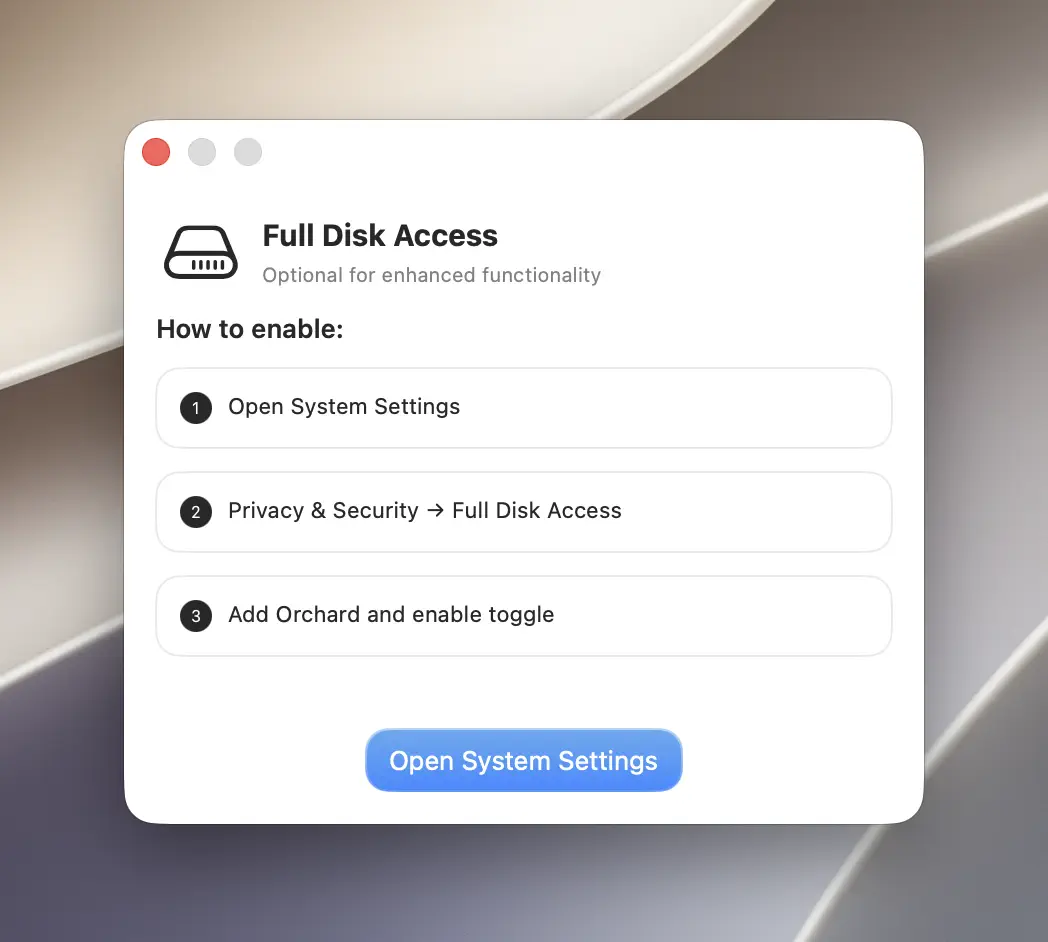
- Full Disk Access — for fast note search.
- Automation (control of the Notes app) — for creating, updating, opening notes, and as a backup for search.
If notes_search fails, the error message tells you to check both permissions in System Settings > Privacy & Security.
CLI usage
The orchard notes command exposes five subcommands: search, create, update, get, open.
orchard notes create --content "<h1>Trip Packing List</h1><br/><p>Passport</p>"orchard notes search --query "roadmap" --limit 10orchard notes get --note-id "x-coredata://.../ICNote/p123" --format plainorchard notes update --note-id "x-coredata://.../ICNote/p123" --content "<h1>Updated</h1><br/><p>New content</p>"orchard notes open --note-id "x-coredata://.../ICNote/p123"Every subcommand accepts --json for machine-readable output. Run orchard notes <subcommand> --help for the full flag list, or orchard help notes <subcommand> for the same information. See the CLI Reference.
Tips & limitations
orchard notes create --folder "Work"puts the new note straight into that folder. The folder must already exist in Notes; otherwise the command errors out instead of creating a stray note, so create it first.- Keep embedded images to a reasonable size, since a very large embedded image may not embed reliably.
- If you don’t know a note’s ID, call
notes_searchfirst: every result includes anidfield you pass asnote_idtoupdate,get, andopen.
Get started
- Download Orchard for macOS (macOS 13 or later; Notes is included in Pro).
- Connect your AI client: Claude Code, Claude Desktop, Codex, Cursor, Raycast AI and other agents, or any MCP client.
- Or skip the chat entirely and use the
orchardCLI from your terminal.