Migrate from Legacy MCP
If you set up Orchard’s MCP integration a while ago, your AI client’s config may still point at the old setup. Earlier versions of Orchard ran a local HTTP server, so the config had your client run npx, or a bundled bun binary invoked as bunx, to launch the mcp-remote package pointed at a http://localhost:<port>/mcp address. That approach has been replaced by the simpler orchard mcp command described in Connect via MCP. Orchard can find and fix the old config for you automatically.
Automatic detection
Orchard scans these client config files for old Orchard entries:
- Claude Desktop:
~/Library/Application Support/Claude/claude_desktop_config.json - Claude Desktop (legacy location):
~/.claude/claude_desktop_config.json - Cursor:
~/.cursor/mcp.json
Orchard treats an entry as legacy when both are true: its key name contains “orchard” (case-insensitive, so Orchard, orchard-local, and similar all match), and its value still looks like the old bridge — it mentions the mcp-remote package, mentions bun (the bundled binary the old bunx-style bridge used), or points at a http://localhost / http://127.0.0.1 address containing /mcp. A config that already uses the current orchard mcp stdio command is left alone, even if you gave it a different name — Orchard never touches a setup that is already correct.
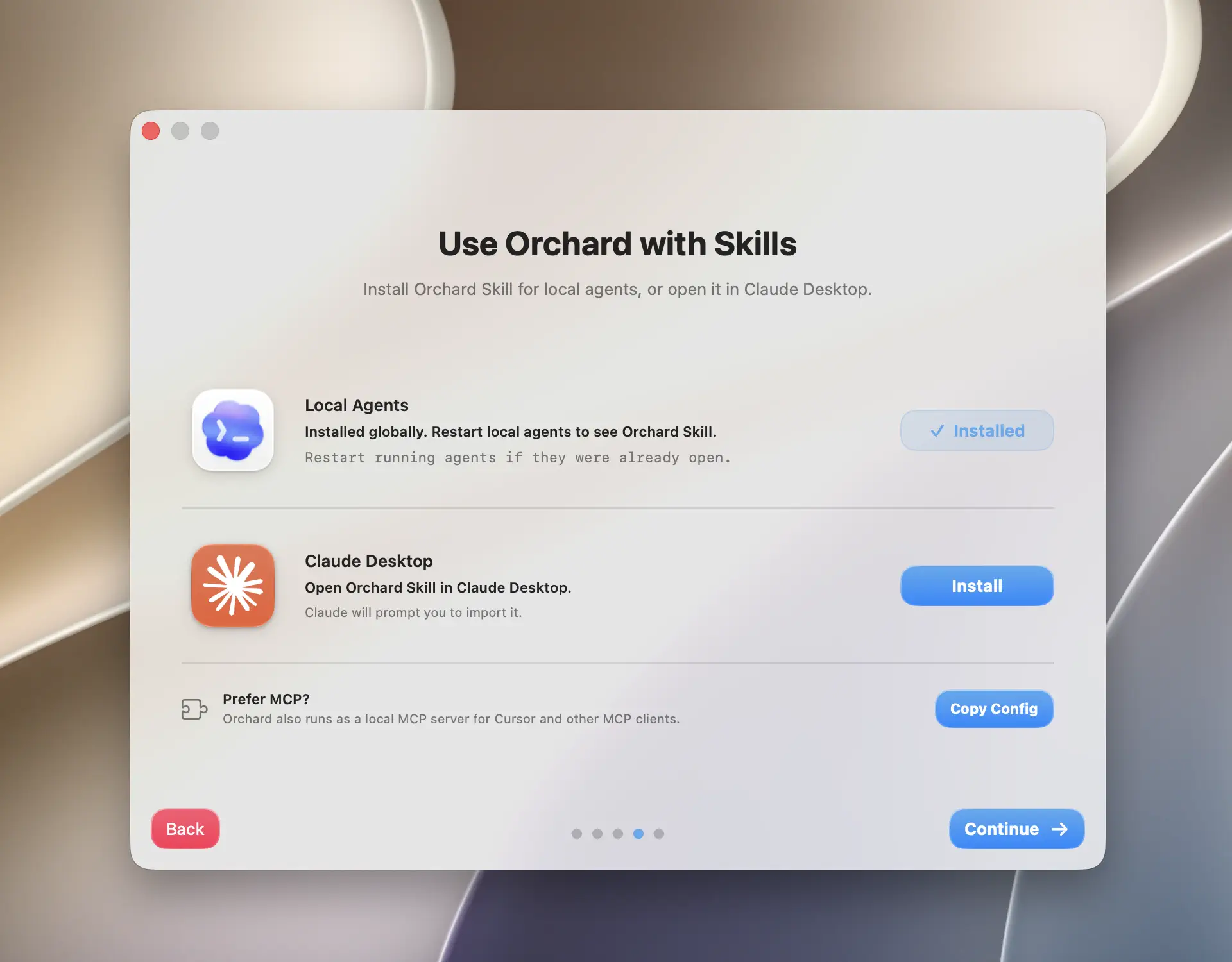
When Orchard finds a match, it shows a prompt during onboarding or the Skill setup step:
Choose how to resolve it
- Open the legacy MCP prompt (it appears automatically when Orchard detects an old entry, in onboarding or the app’s Skill setup step).
- Pick one of three options:
- Keep — dismiss the prompt and leave the old config untouched.
- Remove — delete the old Orchard entry from the config file entirely.
- Update Config — rewrite the entry in place to the current
orchard mcpcommand (commandpointing at yourorchardbinary,args: ["mcp"]). Anyenvorcwdfields on the old entry carry over; the old URL, bridge command, and transport type do not.
- If you chose Remove or Update Config, restart the affected client (Claude Desktop or Cursor) so it reloads its MCP configuration.
Which should you pick?
If you plan to keep using MCP, choose Update Config: it gets you onto the current setup with one click. If you are switching to the Orchard Skill instead, choose Remove to clean up the unused entry. Keep is only useful if you want to investigate the old config yourself first.
Automatic backups
Before Orchard writes to any config file (for either Remove or Update Config), it copies the original file to a backup in the same directory:
claude_desktop_config.json.orchard-backup-20260713-142530The timestamp suffix is in yyyyMMdd-HHmmss format. Only Orchard’s own edit triggers a backup: the JSON structure of the rest of your config file (other MCP servers, unrelated keys) is preserved exactly as-is.
Irreversible
Removing or updating a legacy MCP config cannot be undone through Orchard, though you can always restore the previous version manually from the file ending in .orchard-backup-<timestamp> sitting next to the original.
Manual cleanup
If you prefer to edit the config yourself instead of using Orchard’s buttons, find the mcpServers entry referencing Orchard and replace it with:
{ "mcpServers": { "orchard": { "command": "/usr/local/bin/orchard", "args": ["mcp"] } }}Use whichever path your orchard binary actually resolves to: if you have not installed the CLI symlink, use the full path to orchard-cli inside /Applications/Orchard.app/Contents/MacOS/orchard-cli instead. See CLI Reference for installing the symlink.
Tips & limitations
- Orchard only scans the three config files listed above. If you configured Orchard MCP in a different client or a nonstandard config location, edit it manually using the snippet above.
- Detection and cleanup both run again automatically the next time you open the Skill setup step, so re-running the scan after a manual edit is as simple as reopening that screen.
- If you are unsure whether MCP or the Skill is the better fit going forward, see the FAQ entry on Skill vs MCP.