Account & Devices
Orchard ties tool access to your Orchard account so it knows your plan and which devices are authorized.
Signing in
Orchard doesn’t have its own login form: it hands sign-in off to your default browser and waits for a callback.
-
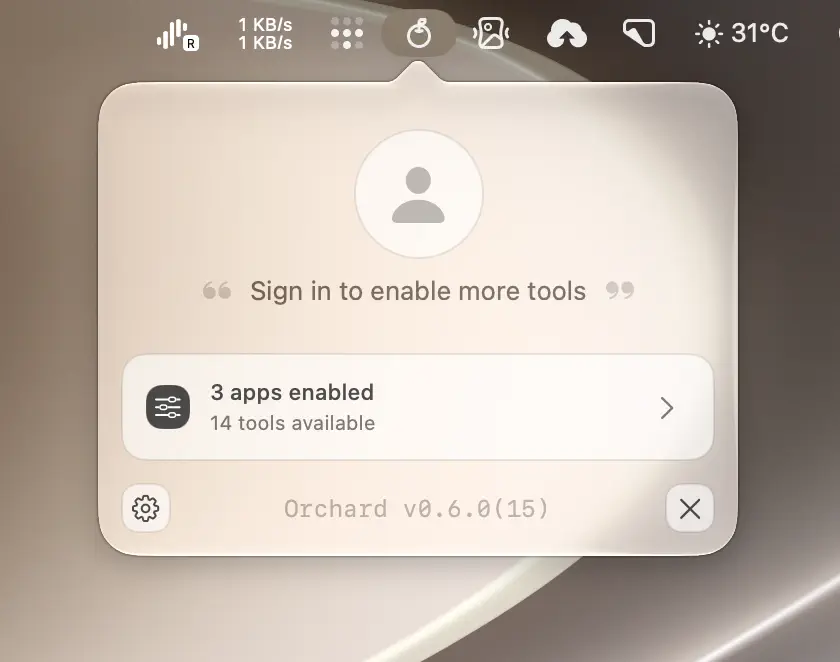
Click your avatar in the main panel, or Sign In on the first step of onboarding. Before you sign in, the panel looks like this:
-
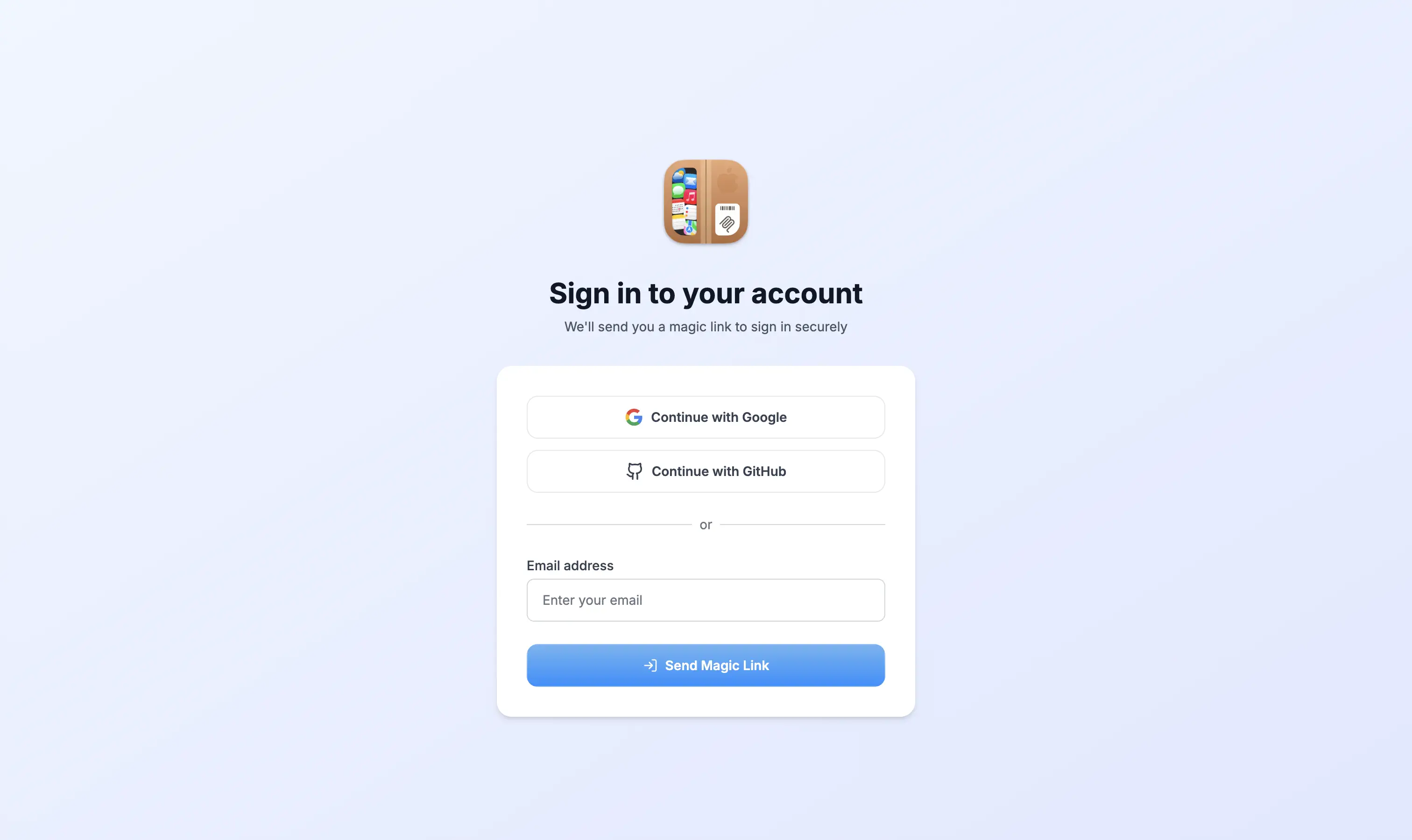
Orchard opens your default browser to the Orchard web login page, with Google, GitHub, and email sign-in options.
-
Complete sign-in in the browser as usual.
-
The browser redirects to
orchard://auth/success, which hands control back to the Orchard app and completes sign-in automatically.
Orchard waits up to 5 minutes for that browser redirect. If you close the browser tab or don’t finish signing in within that window, the attempt times out and you can click Sign In again.
Your access token is stored in the macOS Keychain, not a plain-text file, so signing in on one device doesn’t expose credentials to any other process on the machine.
Signed-in state
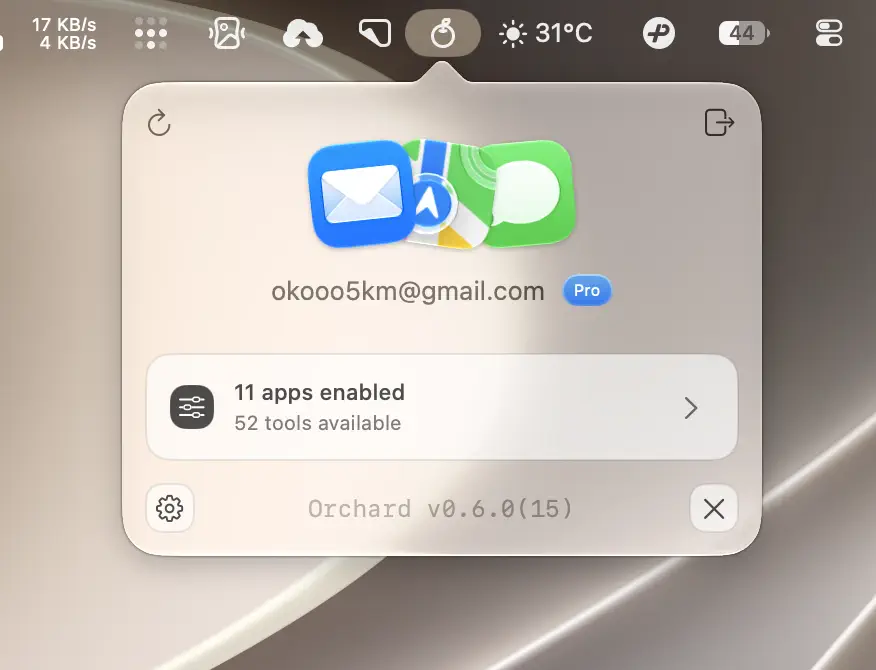
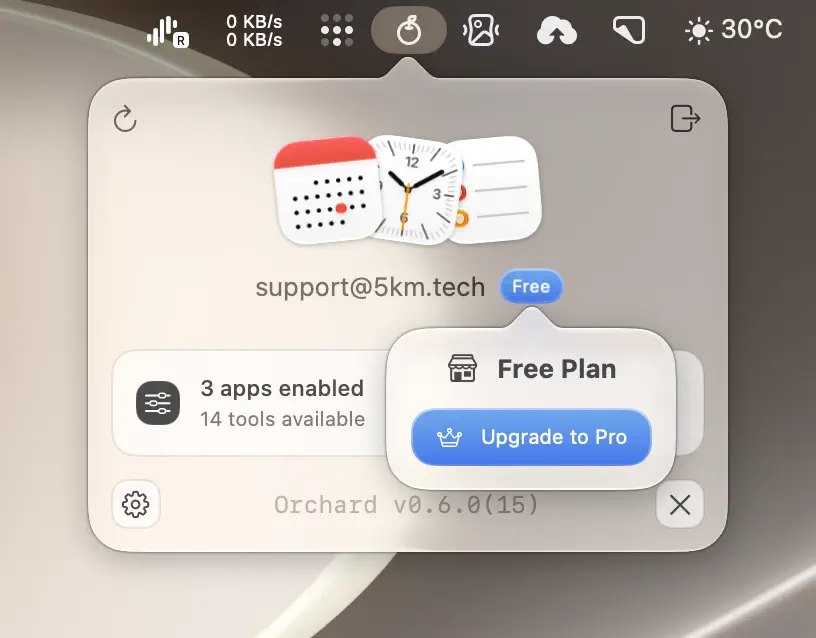
Once signed in, the main panel shows:
- Your email: click it to open your account dashboard in the browser.
- A plan badge: Free or Pro. Lifetime and both Pro billing intervals show the same small “Pro” badge; tap it to see the specific plan (e.g. “Lifetime Plan”, “Pro-annual Plan”) in a popover. On Free, the same popover holds an Upgrade to Pro button.
- A refresh button: re-checks your subscription status immediately instead of waiting for the next automatic check.
- Sign out: asks for confirmation before clearing your session, since it also resets Pro features to the free set.
Device limits
Each plan allows a fixed number of active devices:
| Plan | Device limit |
|---|---|
| Free | 1 device |
| Pro | 3 devices |
Orchard registers the current device at sign-in and periodically afterward. If you’re already at your plan’s limit and try to sign in on another Mac, the server rejects the registration and Orchard shows a Device Limit Reached dialog.
The dialog reports your device count against the limit (for example, 1/1 devices), flags devices inactive 30+ days as removal candidates, and offers a Manage Devices button to your account dashboard, where you can remove old devices or upgrade for more slots.
Tip
If you’re switching Macs, remove the old device from the dashboard first; you don’t need to contact support to free up a slot.
Related reading
Plan status and device sign-in are independent: see Free vs Pro for what each plan unlocks and how upgrades take effect without re-authenticating.