Permissions Guide
Reminders, Calendar, Mail, and Orchard’s other app integrations only work once macOS lets Orchard touch your real data. This page lists every permission Orchard can request and how to grant or review each one.
Permission overview
All permissions are requested and held by the Orchard app itself: the CLI, the installed Skill, and orchard mcp never hold permissions directly. They all route through the same local Orchard process, so you only ever grant access once, in one place.
| Permission | Used by | How it’s granted |
|---|---|---|
| Reminders (full access) | Reminders | System prompt, during onboarding or on first use |
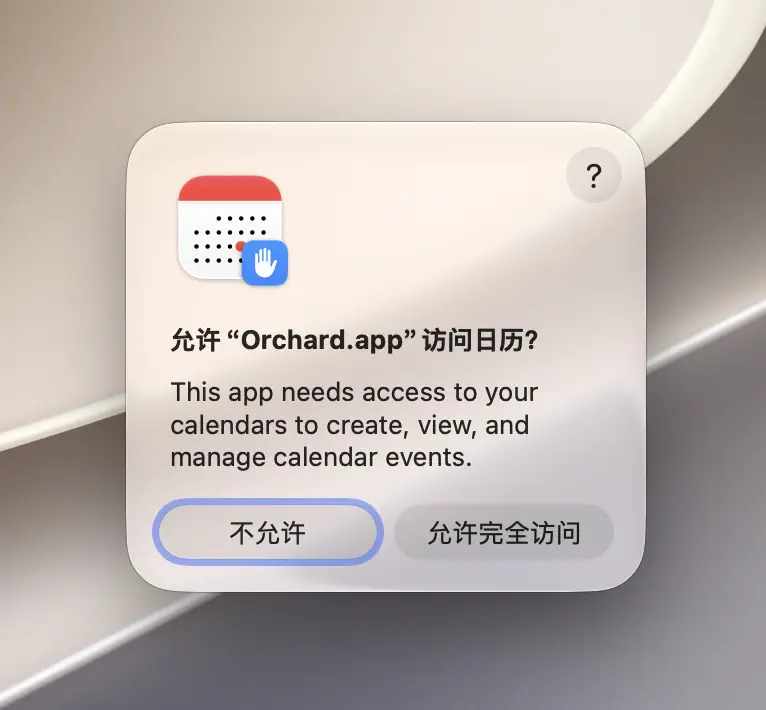
| Calendars (full access) | Calendar | System prompt, during onboarding or on first use |
| Media library (Apple Music) | Apple Music | System prompt during onboarding if you selected Apple Music as a feature, or any time via the main panel’s Authorization button |
| Location (When In Use) | Weather, Maps | System prompt the first time a tool actually needs a location |
| Contacts | Contacts | System prompt the first time you search or read a contact |
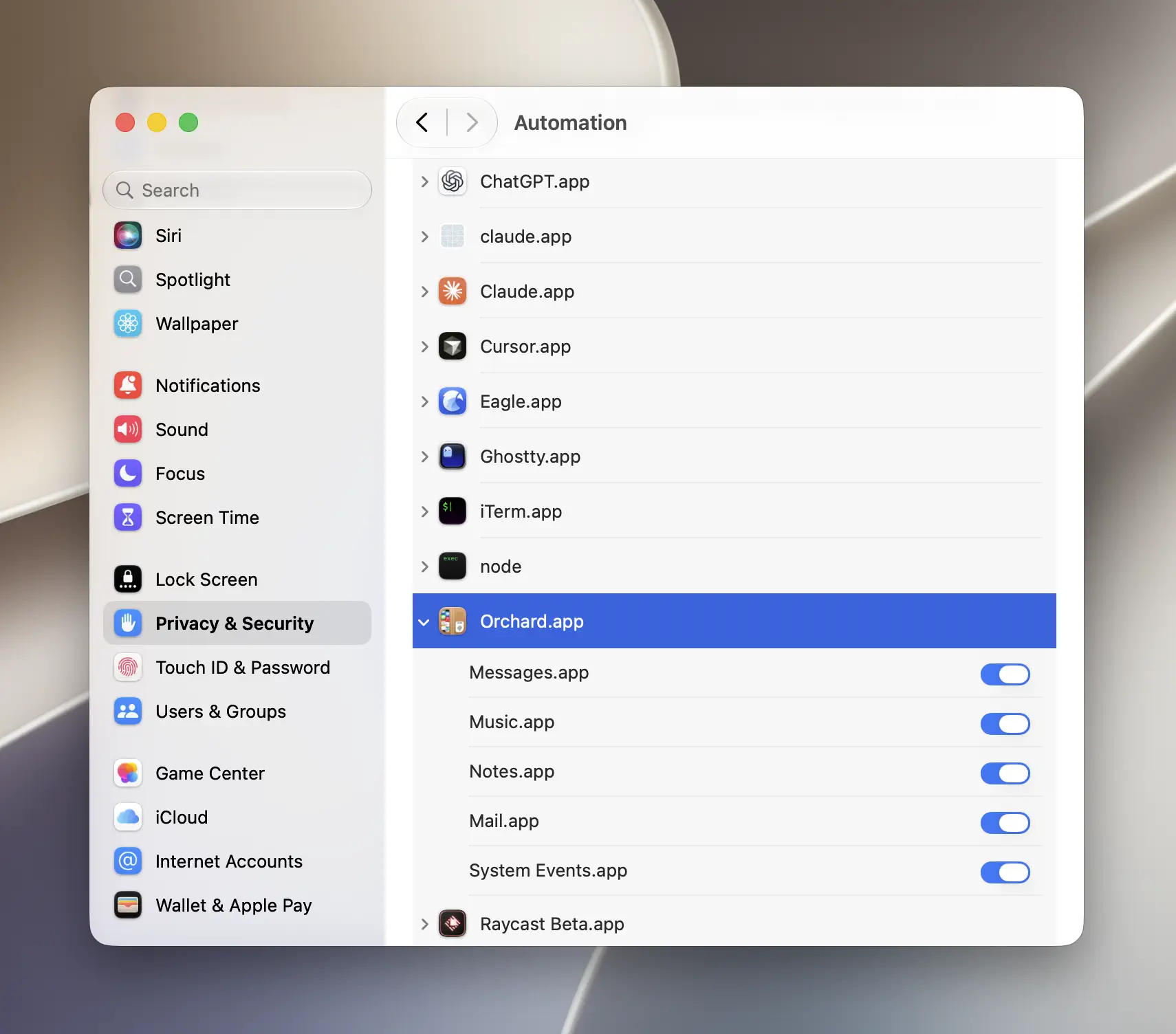
| Automation (Apple Events) | Apple Music, Notes, Mail, Messages, Shortcuts | System prompt the first time Orchard sends an Apple Event to that app; review under System Settings > Privacy & Security > Automation |
| Full Disk Access | Mail, Messages, Notes (reading their content directly) | Not requestable with a system prompt; add Orchard manually in System Settings > Privacy & Security > Full Disk Access |
Caution
Clock needs no permissions at all, but it is not enabled by default. Turn it on in the integrations list before asking your AI client for the time.
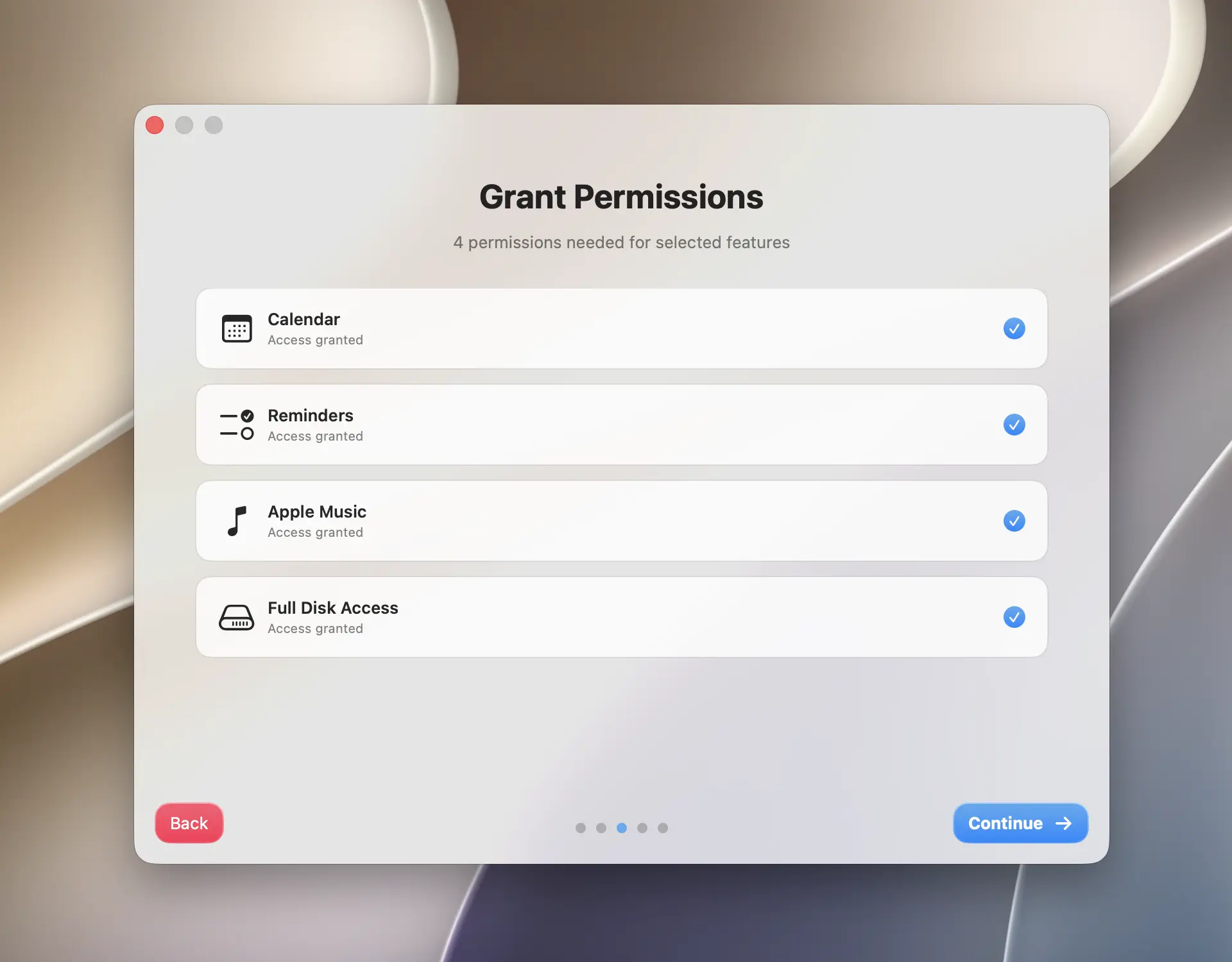
From the main panel, the Authorization button requests Reminders, Calendar, and Apple Music together in one action. During onboarding’s Grant Permissions step, Reminders and Calendar (plus Apple Music, if selected) each get their own row with a separate Grant button, so you grant them one at a time. Location, Contacts, and Automation are requested lazily, the first time a tool needs them. Full Disk Access has no system prompt; Orchard’s guide window appears during onboarding (if you enabled Notes or Messages) or any time later from More Options.
Granting Full Disk Access
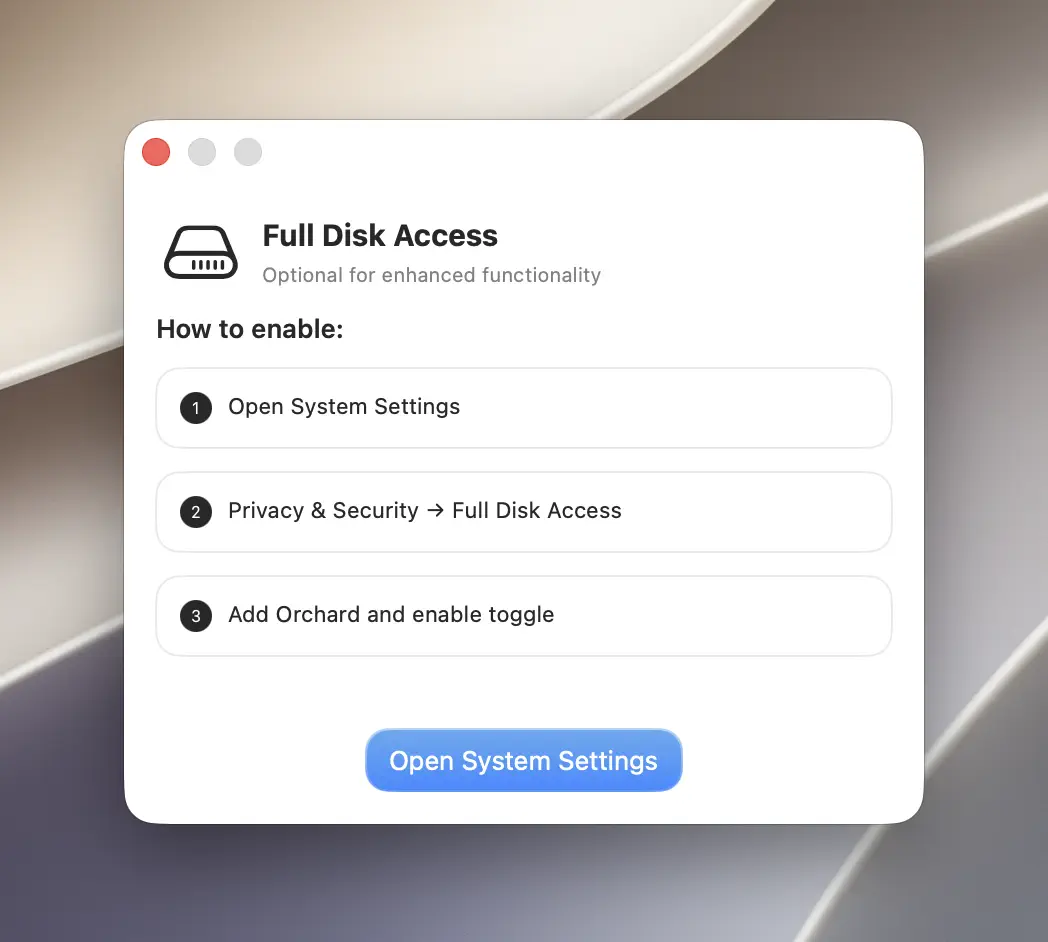
Unlike Reminders or Calendar, Full Disk Access has no system prompt. You add Orchard yourself in System Settings; a bundled guide window walks you through it and deep-links straight to the right settings pane.
- Open the Full Disk Access guide: from onboarding’s Grant Permissions step, or later from More Options > Authorization > Full Disk Access in the main panel.
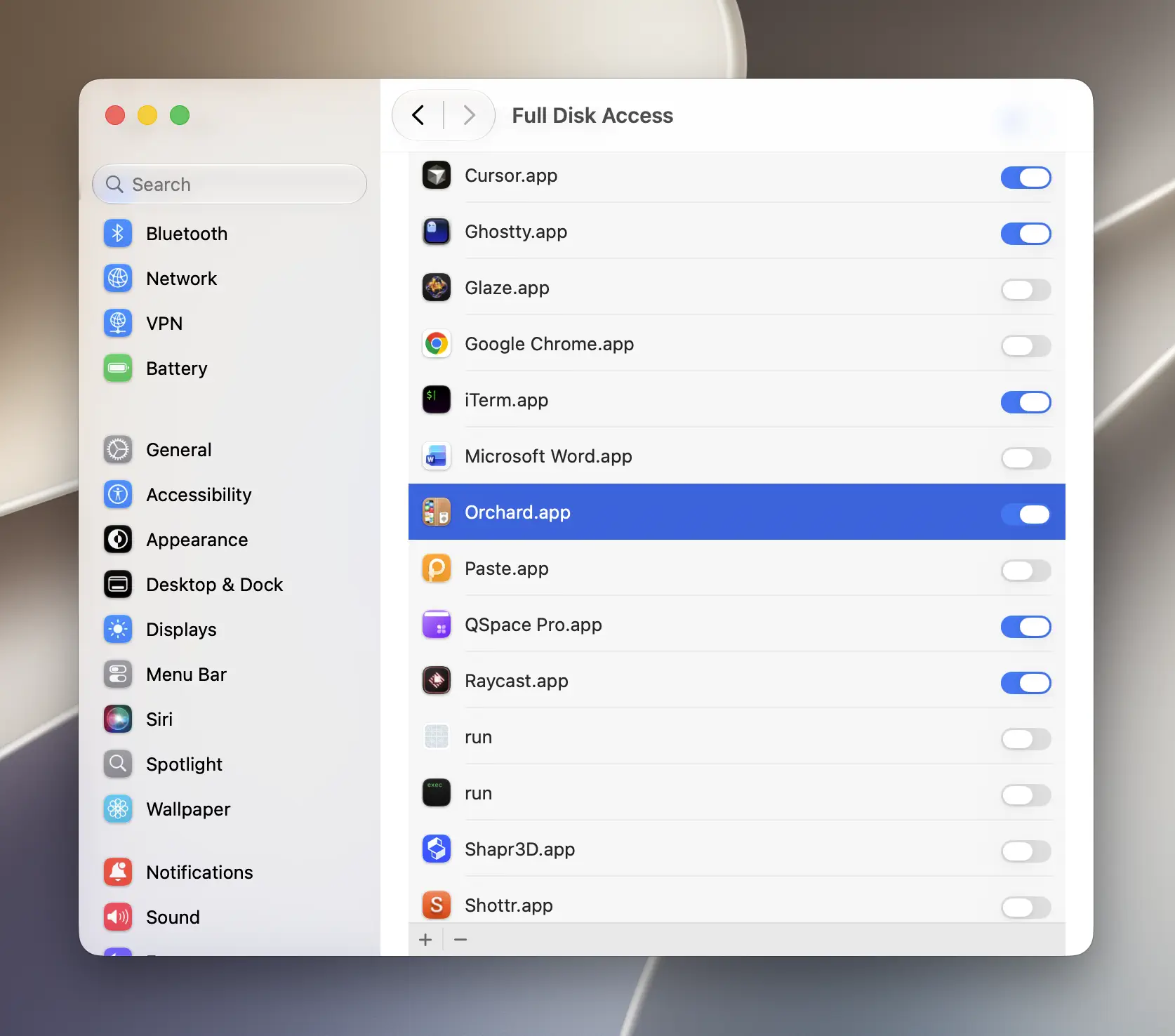
- Click Open System Settings — this jumps directly to Privacy & Security > Full Disk Access.
- Find Orchard in the list (use the + button to add it if it isn’t there yet) and enable the toggle next to it.
Tip
If Mail or Messages tools still fail after enabling the toggle, quit and reopen Orchard: macOS applies Full Disk Access changes only after the app relaunches.
Full Disk Access is what lets Orchard read your Mail, Messages, and Notes content directly. Without it, mail_read, messages_read, and notes_search fail with an access error; see Troubleshooting for the exact messages.
Note
Marking an email read or unread by ID (mail_mark with message_id or message_ids) needs both permissions at once: Full Disk Access to look up the message, then Automation to flip its read status through Mail. Marking every message in a mailbox at once (mail_mark with mailbox_name, no message ID) only needs Automation.
Automation (Apple Events) permission
Apple Music, Notes, Mail, Messages, and Shortcuts rely on Automation, the permission that lets one app send commands to another. macOS prompts for it automatically the first time Orchard calls into that app; there’s no button to press ahead of time.
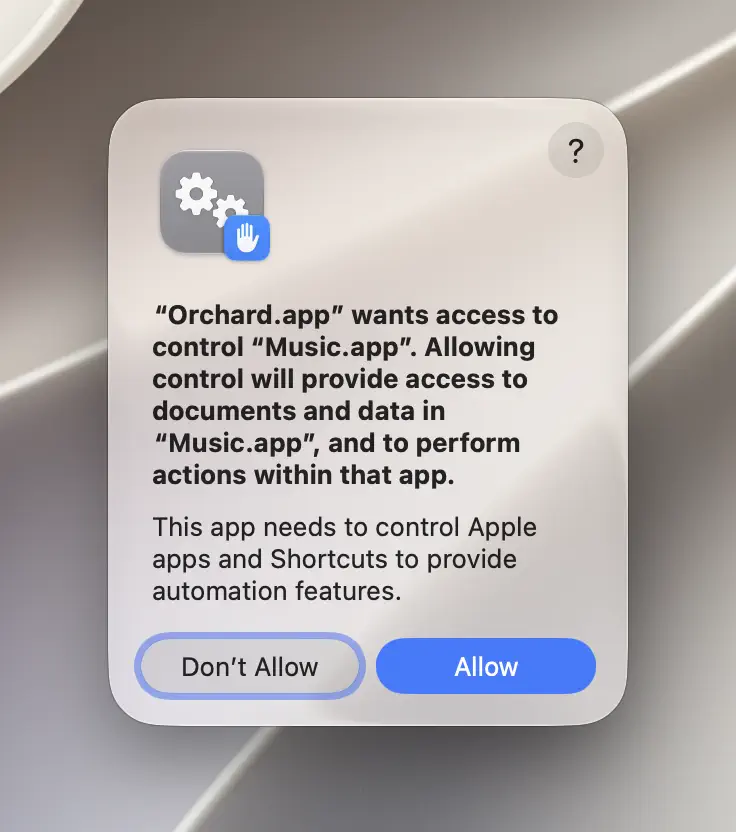
If you dismiss or deny a prompt, re-enable it at System Settings > Privacy & Security > Automation, under the Orchard entry.
Location, Contacts, and Apple Music
Location and Contacts are requested only the moment a tool needs them, never up front. Apple Music falls back to the same pattern, though you’ll often have granted it already through one of the up-front paths above:
- Location: requested the first time Weather or Maps needs your position, e.g.
weather_getwithout an explicit location, orlocation_current. - Contacts: requested the first time you call a Contacts tool like
contacts_search. - Apple Music: requested during onboarding if you selected it as a feature, or any time via the main panel’s Authorization button, which requests it together with Reminders and Calendar regardless of whether Apple Music is enabled. Otherwise, Orchard shows it as not-yet-authorized until the first Apple Music tool call requests it.
Checking permission status
The main panel’s More Options popover has an Authorization row showing live status for every permission: Reminders, Calendar, Apple Music, Location, Contacts, and Full Disk Access. Status refreshes every couple of seconds, so you can grant a permission in System Settings and glance back at Orchard to confirm it.
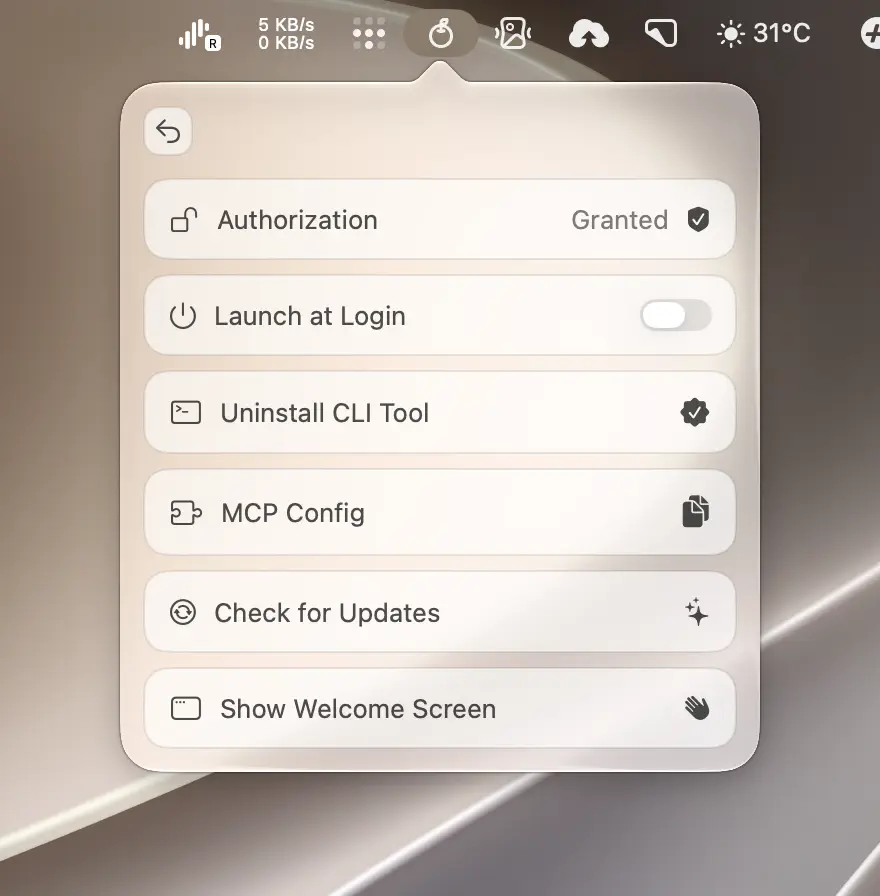
Click the Full Disk Access row in that popover at any time to reopen the guide window if you need to revisit the setup steps.
Next steps
If a tool call still fails after granting the right permission, Troubleshooting has the exact error text and fix.