Connect Claude Desktop & Cowork to Apple Calendar, Mail, Reminders & Notes (MCP)
Can Claude connect to Apple Calendar, Apple Mail, Reminders or Notes on your Mac? With Orchard, yes. Claude Desktop can use Orchard in regular chats and in Cowork, but the available execution path depends on the environment. The Skill uses the local CLI when it can reach your Mac. Cowork runs inside an isolated sandbox, so the current Skill detects that situation and uses Orchard’s MCP connection through Claude Desktop instead.
Tip
Wondering what Claude can actually do once it’s connected? Can Claude connect to Apple Calendar, Reminders, Mail and Notes? has real example prompts for every app.
For the smoothest setup, install both pieces from Orchard’s Use Orchard with Skills screen: the latest Skill and the Claude Desktop MCP configuration.
Import the Skill
- Update Orchard to 0.6.2 or later, open it from the menu bar, and sign in.
- Open More Options → Show Welcome Screen, then continue to Use Orchard with Skills. If Claude Desktop is installed on your Mac, its own row appears below Local Agents.
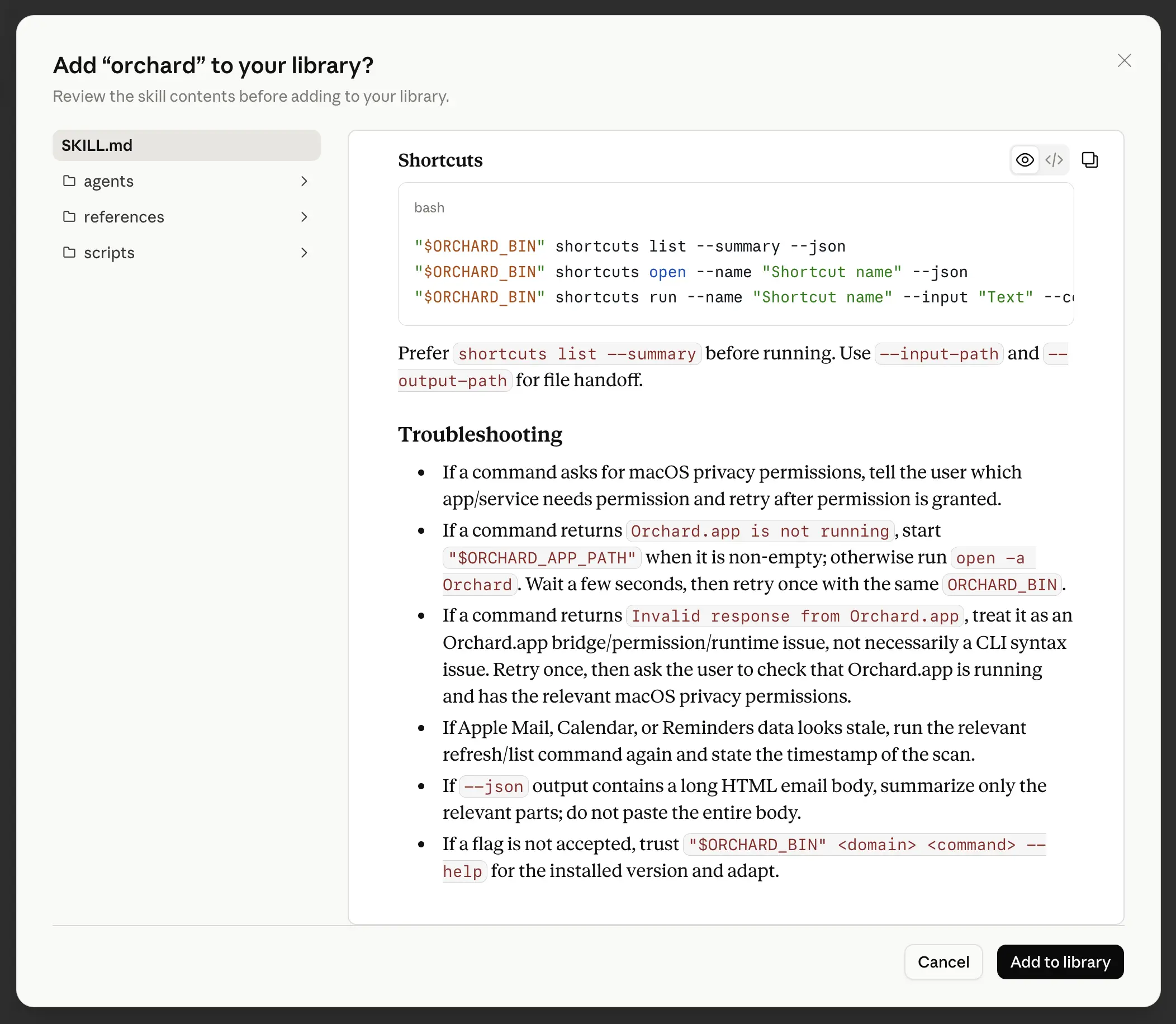
- Click Install (or Update). Orchard opens the bundled
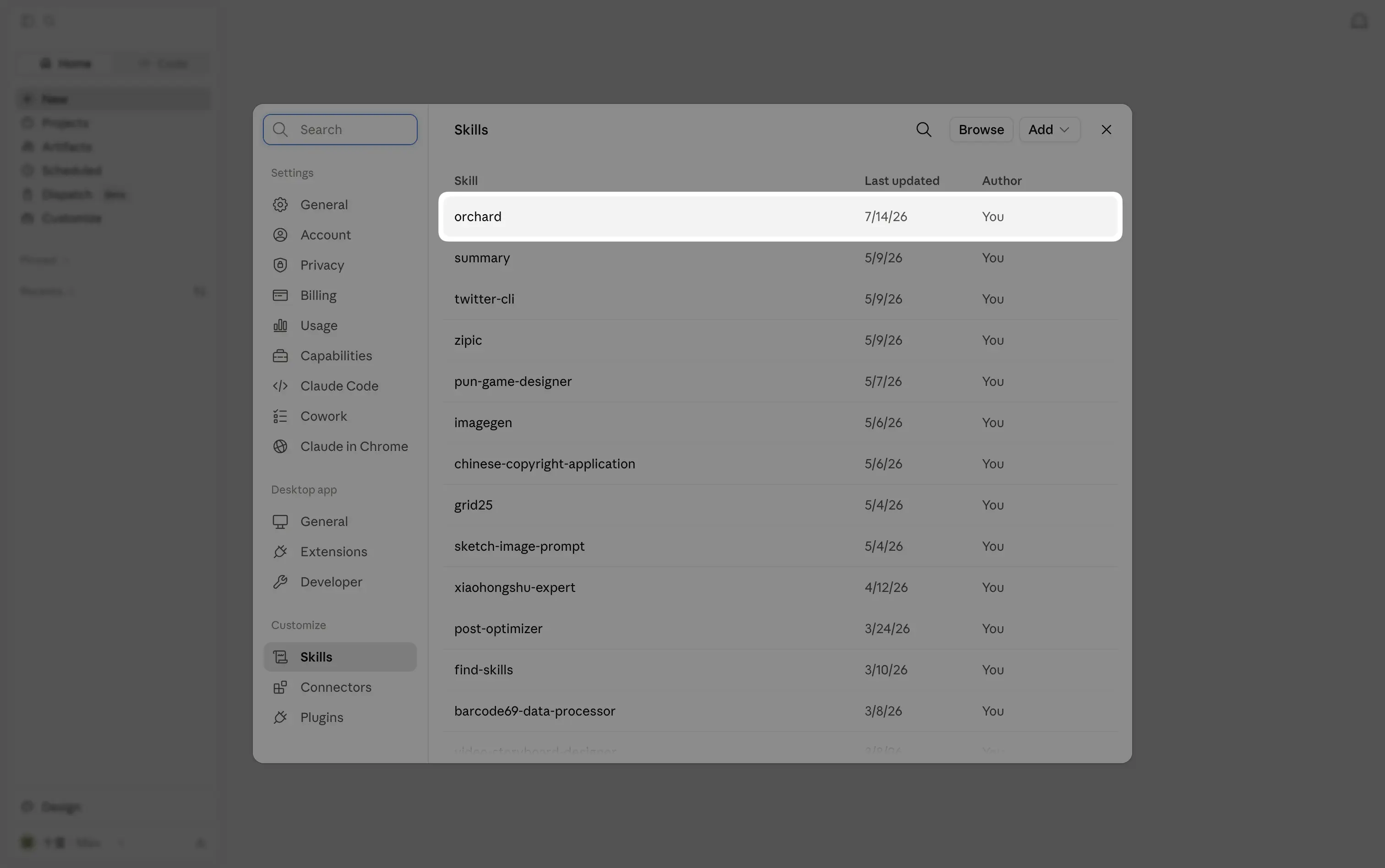
.skillpackage with Claude Desktop. - Approve Claude Desktop’s import confirmation and make sure the orchard Skill is enabled under Settings → Capabilities → Skills.
- Return to Orchard. It may take about 90 seconds to confirm Claude’s cloud-side import. If Orchard says the import status is unknown but the Skill is visible and enabled in Claude Desktop, the import succeeded.
Note
The Claude Desktop row only appears if Orchard finds Claude.app in /Applications or ~/Applications. If you installed Claude Desktop after opening Orchard, reopen the setup screen.
Why does the Skill work in Claude Desktop but not Cowork?
Cowork’s shell runs in an isolated environment and cannot see the orchard command installed on your Mac. An older Orchard Skill could therefore stop after reporting that the CLI or app was missing. The Skill bundled with Orchard 0.6.2 recognizes Cowork and switches to Orchard’s MCP tools instead — but Claude Desktop must have an orchard MCP server configured for that bridge to exist.
- On Orchard’s Use Orchard with Skills screen, install or update the Claude Desktop Skill as described above.
- Find MCP for Claude Desktop, Cursor & more on the same screen and click Verify. Orchard creates or repairs Claude Desktop’s
orchardentry and reports Claude Desktop: configured. - Fully quit and reopen Claude Desktop so it reloads the MCP configuration.
- Start a new Cowork task and ask for something simple, such as “List my incomplete reminders.” The current Skill should route that request through the MCP bridge automatically.
Installing or updating the Local Agents Skill also runs this MCP configuration check automatically. The separate Verify button is the reliable way to rerun it if the config was removed or the automatic step could not write the file.
If automatic configuration fails
- Click Copy Config on the MCP row in Orchard.
- Fully quit Claude Desktop.
- Open
~/Library/Application Support/Claude/claude_desktop_config.jsonin a text editor. Merge the copiedmcpServers.orchardentry into the existing JSON; keep any other MCP servers already in the file. - Save valid JSON, reopen Claude Desktop, and start a new Cowork task.
Don't replace your other MCP servers
If the file already contains an mcpServers object, add the copied orchard entry inside it instead of replacing the whole file. If you installed the global CLI, the command is usually /usr/local/bin/orchard; otherwise Orchard’s copied config uses the CLI inside Orchard.app.
If you installed the global CLI, orchard doctor provides a read-only check for the Skill installs and Claude Desktop MCP entry. See CLI Reference for details.
Where the Skill installs
Claude Desktop manages imported Skills separately from Claude Code’s ~/.claude/skills/ directory. Installing for one does not install for the other, even though both clients are made by Anthropic. Use the Claude Code page for its separate flow.
If Claude reports the Skill as disabled
Claude Desktop lets you disable individual Skills from its own settings. If you do that, Orchard shows Installed in Claude Desktop, but disabled in Skills instead of a plain Installed state.
Disabled, not broken
Open Claude Desktop → Settings → Capabilities → Skills and re-enable Orchard. Orchard can detect this state, but it cannot change Claude Desktop’s Skill toggle for you.
Updating
When a newer Skill ships with an Orchard update, the Claude Desktop row changes from Installed to Update. Click it, approve the re-import in Claude Desktop, then restart Claude Desktop. The Skill has its own version number, so it may be newer than the Orchard app version; use the Update state in Orchard instead of comparing those numbers yourself.
Verify it worked
- In Claude Desktop, confirm orchard is listed and enabled under Settings → Capabilities → Skills.
- In a regular chat, ask “What’s on my calendar this week?”
- In a new Cowork task, ask “List my incomplete reminders.” Cowork should use the MCP-backed Orchard tools without trying to find the Mac CLI inside its sandbox.
Tips
- Free accounts can install and use the Skill; Pro-only tools return an upgrade message instead of running. See Free vs Pro.
- Orchard 0.6.2’s CLI and MCP channels try to launch Orchard.app when a tool call arrives. If startup fails, open Orchard manually and retry.
- MCP configuration for other clients is covered in Connect via MCP.